Target language content is not updated after changing default language content
After changing content in your store's default language, the target language may continue displaying the previous translation. Check the possibilities below to find the cause and choose how to fix it.
Manual translations are saved in Shopify. When you change the default-language content, Transtore does not automatically update or replace its existing manual translation. You must update the translation separately to match the latest content.
Why does the previous translation appear?
A manual translation may already exist in Shopify, even if you have only recently installed Transtore. It could have been created earlier in Transtore or by another translation app, such as Shopify Translate & Adapt, Transcy, or T Lab.
If you created a manual translation before changing the default-language content, that translation may now be outdated. Open the corresponding resource in Transtore and compare its saved translation with the latest default-language content.
Solution 1: Update the existing translation
- Open the Transtore app.
- Go to Language.
- Find the target language and click Manage language.
- Find the resource containing the content. See How to Find and Edit Translations in the Transtore App for help locating it.
- Select the content you want to update.
For the Product resource, you can select and update up to 25 products per batch. Other resources must be opened and updated individually.
- Edit the translation manually, or click Improve translation with AI and select OpenAI GPT or DeepSeek.
- Review and save the updated translation.
- Repeat for each batch of products or target language you want to update.
Solution 2: Reset the target language
If you want to remove all existing translations for a target language and start again, you can unpublish and remove the language in Shopify, then add and publish it again.
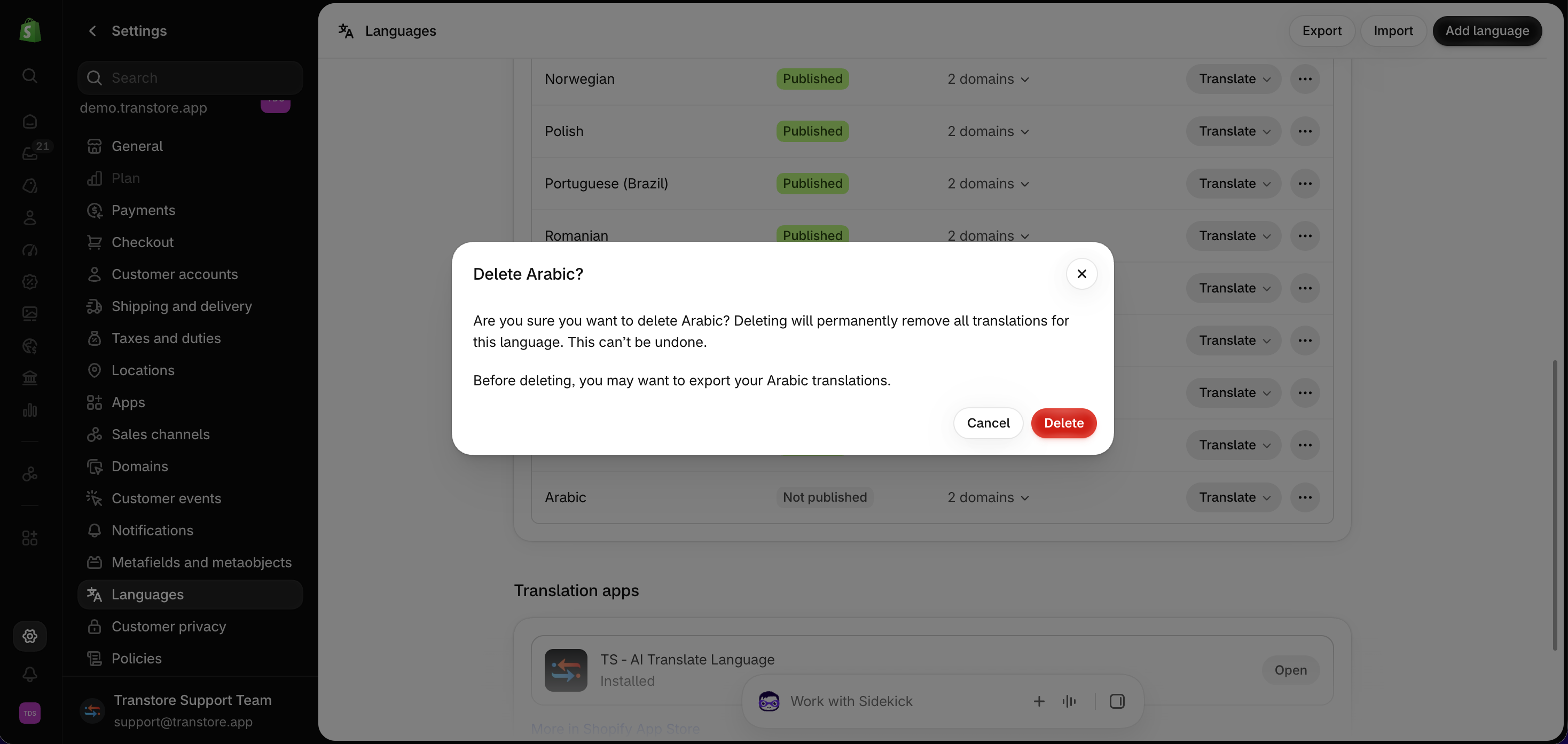
Shopify will permanently delete all translations for the language when you remove it. This cannot be undone. Export any translations you want to keep before continuing.
- In your Shopify admin, go to Settings > Languages.
- Click the three-dot menu next to the target language, select Unpublish, and confirm. This unpublishes the language from all domains.
- After it is unpublished, click the three-dot menu again and select Remove language.
- Review the warning and confirm the deletion. Shopify will permanently delete all translations for this language.
- Click Add language to add the language again, then publish it.
- Reassign the language to the appropriate domains and create the translations you need in Transtore.
After updating or resetting the translations, open your storefront in the target language and check that the latest content appears.
If the previous translation still appears, contact us at [email protected]. Include the default-language content, target language, affected storefront URL, and a screenshot so our team can investigate.