How to Find and Edit Translations in the Transtore App
Transtore organizes content by resource type, so you can find the content you want to edit in the relevant section.
1. Find the content you want to edit
In Transtore, go to Language > Manage language for the target language. Under Translations, open the relevant resource.
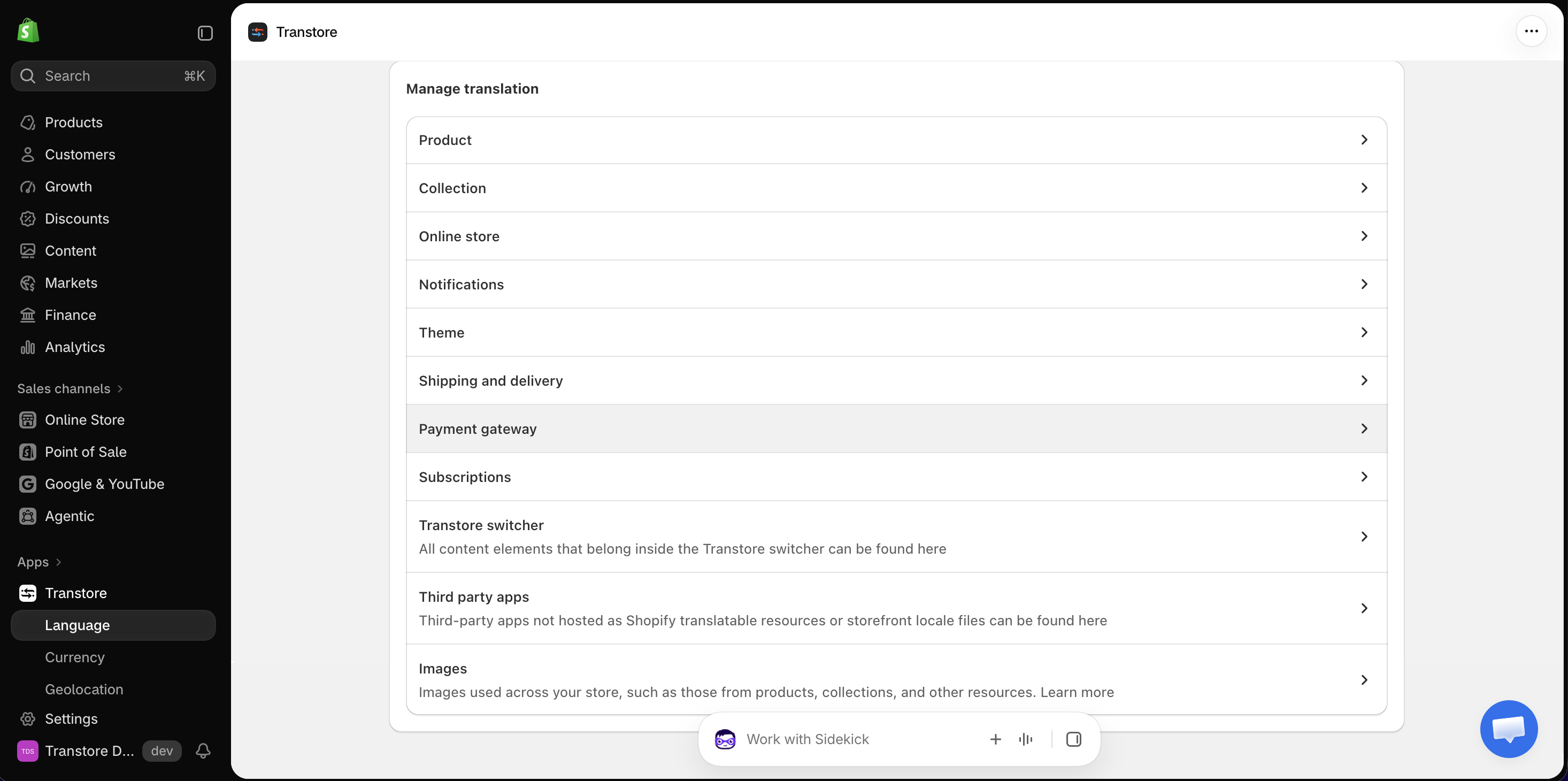
| Resource | Content you can find |
|---|---|
| Product | Product titles, descriptions, product types, option names and values, URL handles, meta titles, and meta descriptions |
| Collection | Collection titles, descriptions, URL handles, meta titles, and meta descriptions |
| Online store | Blogs, blog posts, pages, navigation, links, filters, metaobjects, policies, and store metadata |
| Notifications | Order confirmations, shipping and delivery notifications, invoices, pickup updates, and other Shopify notifications |
| Theme | Home page, Cart page, Checkout page, Templates, default theme content, section groups, and static sections |
| Shipping and delivery | Shipping-related content displayed during checkout, order updates, and delivery |
| Payment gateway | Payment-related content used during checkout and payment flows |
| Subscriptions | Content related to recurring payments and subscription services |
| Transtore switcher | All content elements that belong inside the Transtore switcher can be found here. |
| Third party apps | Third-party apps not hosted as Shopify translatable resources or storefront locale files can be found here. |
| Images | Images used across your store, such as those from products, collections, and other resources. Learn more. |
2. Add or update a translation
Enter your translation in the target-language field and save it. Or, click Improve translation with AI, choose OpenAI GPT or DeepSeek, review the generated translation, and save it. See Improve translations with AI for details.
3. Common cases
- URL handles: Auto Translation does not translate URL handles. To localize one, open the relevant Product, Collection, or Online store > Pages resource and enter the handle manually.
- SEO content: Meta titles and descriptions may not appear in Transtore until they have been added or edited in your store’s default language. See Translate meta titles and meta descriptions.
- Theme Editor content: See Where can I find and edit Theme Editor content in Transtore?.
- Custom Liquid: Custom Liquid content cannot be edited in Transtore.
- Theme Editor content on a product page: Headings, Rich text, banner text, button labels, and other content added to a product page through sections or blocks in the Shopify Theme Editor are usually located under Theme > Templates in Transtore. Although this content appears on a product page, it may not be listed under Product. See Where can I find and edit Theme Editor content in Transtore?.
- Third-party app content: Some third-party app content may be translated automatically on the storefront but may not be available for manual editing in Transtore. Content displayed inside an iframe cannot be translated by Transtore. See Can Transtore translate third-party app content?.
If you cannot find the content you want to edit, send us the exact text and its storefront URL at [email protected]. Our support team can help identify the resource or check whether the content is available for manual translation.