Replace images by language
Transtore allows you to display different images for each target language on your storefront. You can replace images from Products, Collections, and Files with localized versions.
Shopify currently does not support translating images on the Checkout page.
If you do not upload a localized image, the original image will continue to be displayed.
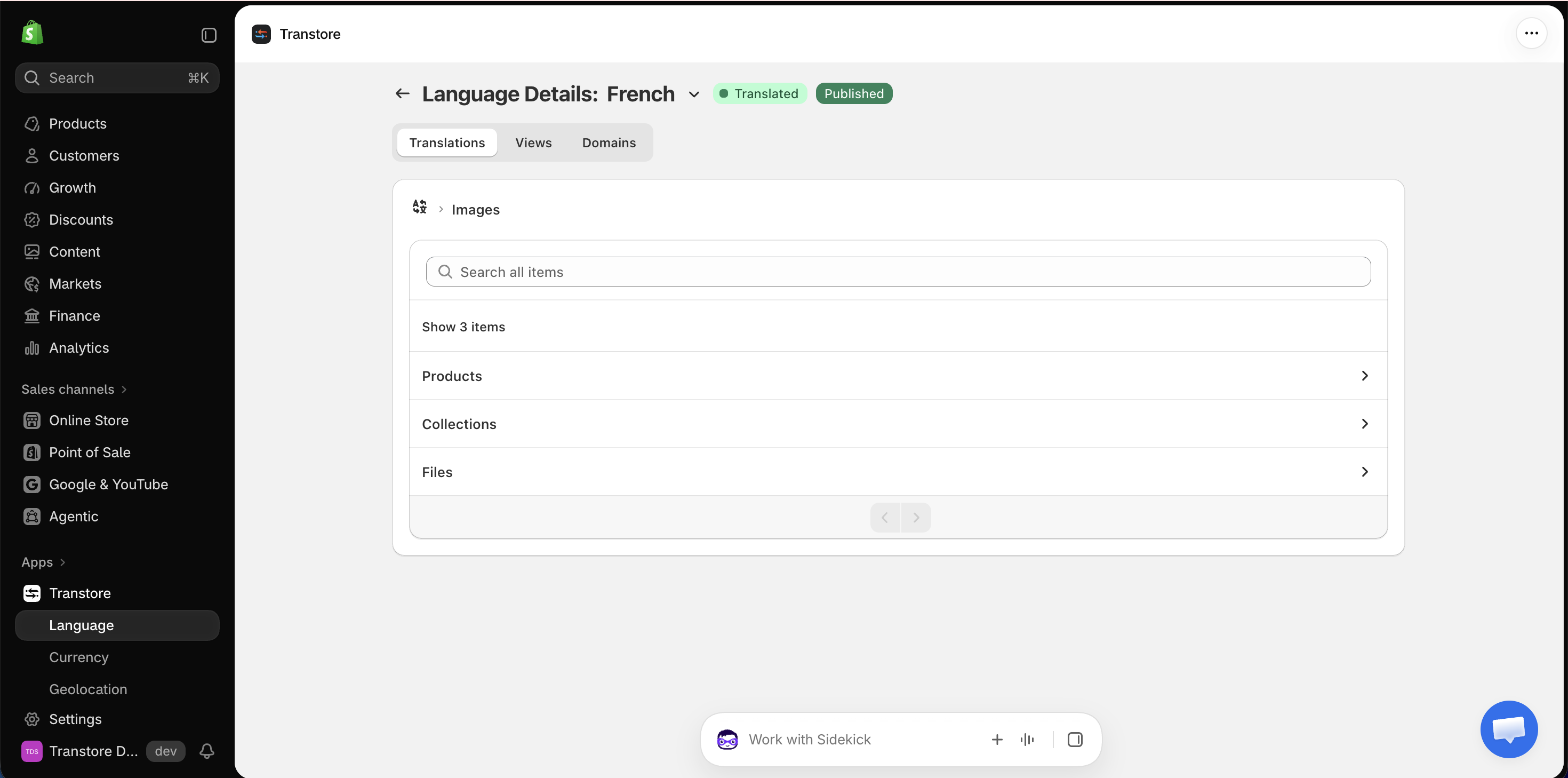
Step 1: Open Images
- Open the Transtore app in your Shopify admin.
- Go to Language.
- Find the target language and click Manage language.
- Under Translations, open Images.
- Select Products, Collections, or Files.
Step 2: Add a product, collection, or file
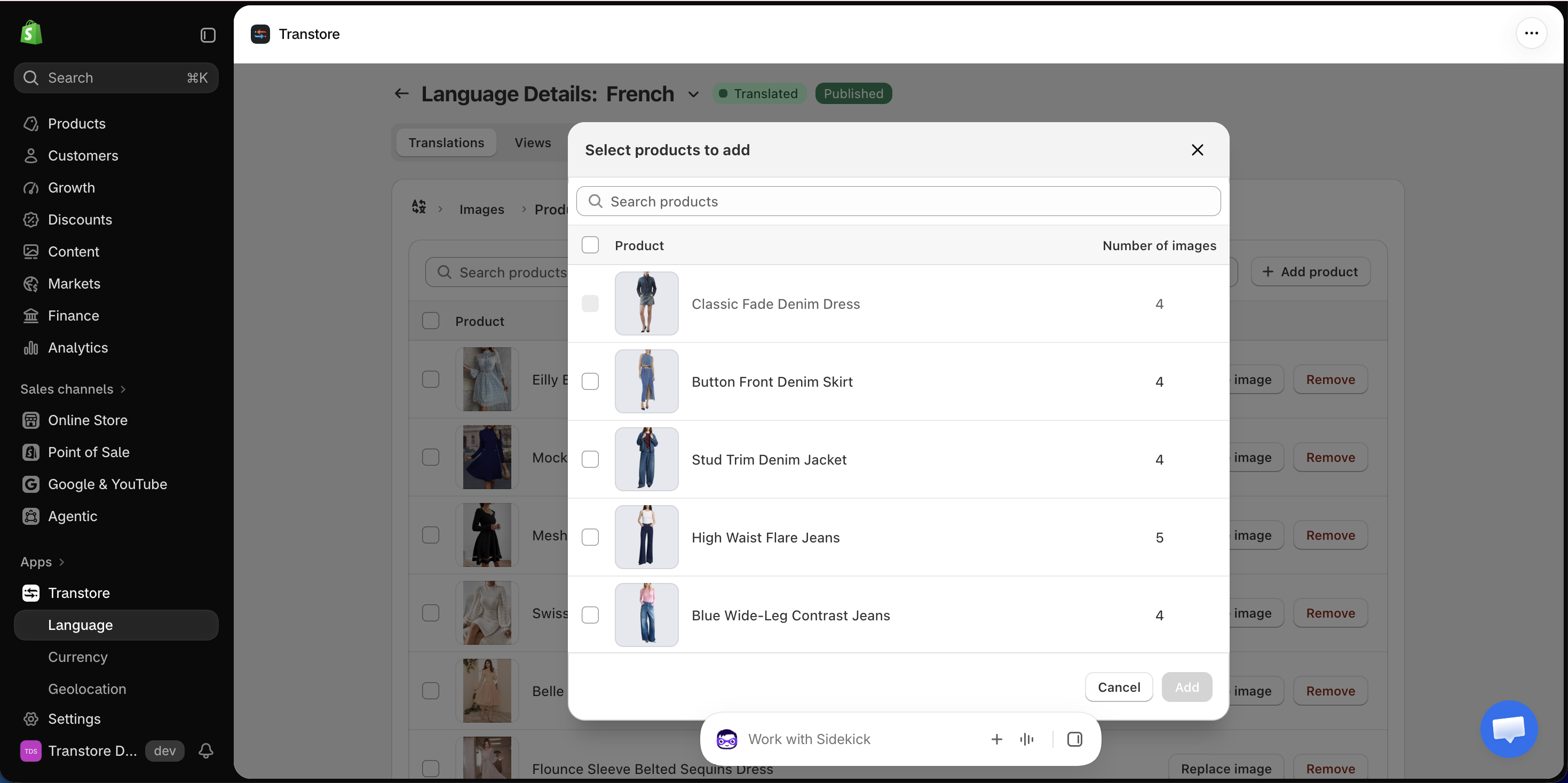
The following example uses a product:
- Open Products.
- Click Add product.
- Select one or more products.
- Click Add.
Follow the same process when adding collections or files.
Step 3: Upload localized images
- Find the product you added and click Replace image.
- Under Media, find the original image you want to replace.
- Click Upload image.
- Click Add media and select the localized image.
- Click Upload.
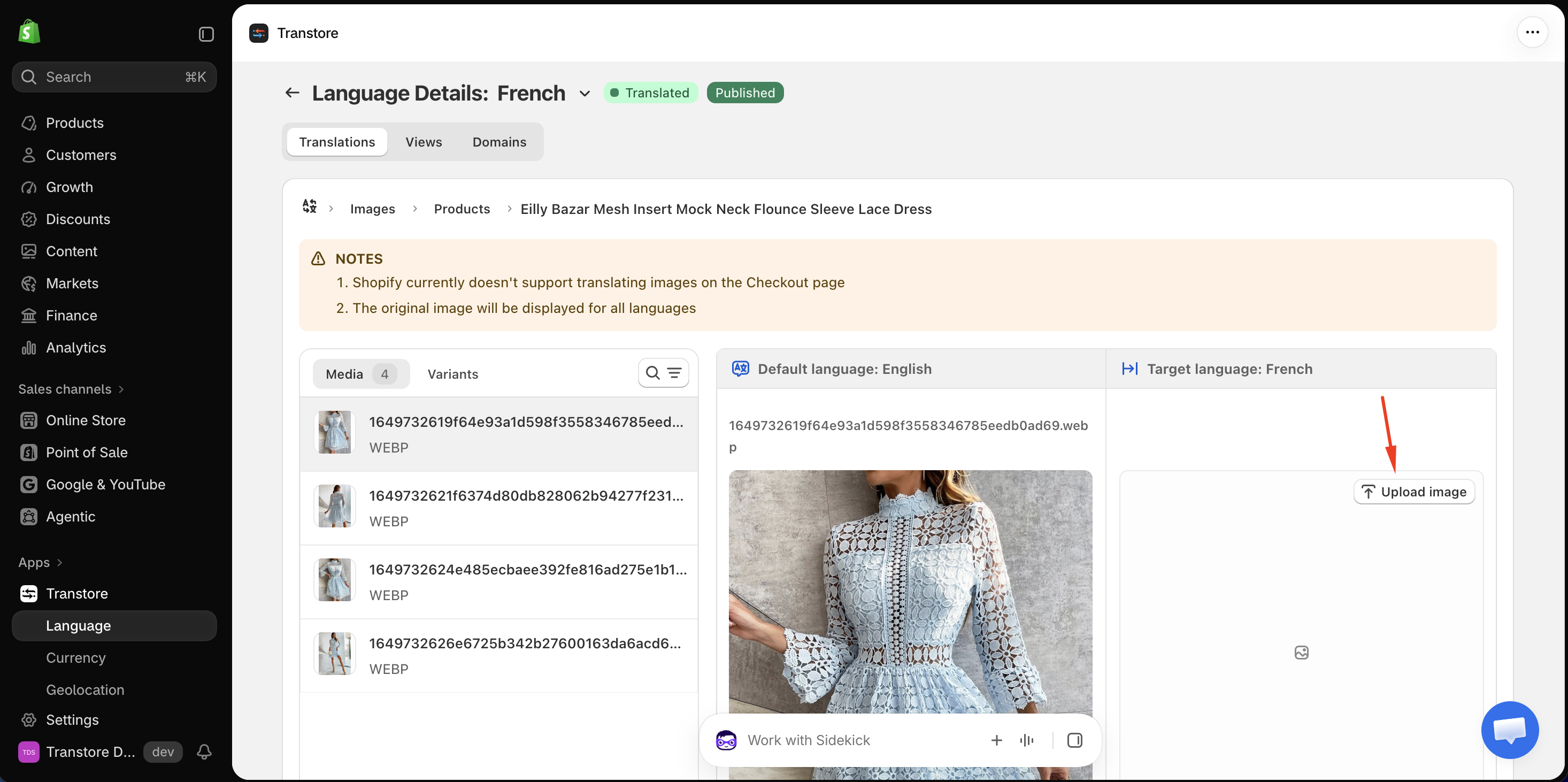
Repeat these steps for any other images you want to replace. The localized images will appear when customers browse your storefront in the selected target language.
If you have any questions or need help replacing images, please contact us at [email protected]. Our support team will be happy to guide you through the setup.