How to Set Up the Language Feature
Once you've successfully configured the Language feature, all the content in your store will be automatically translated.
To set up this feature, please follow these steps:
Step 1: Add Target Languages
Choose the language(s) you want the content to be translated into. Depending on your plan, you can add up to 3 or 20 target languages.
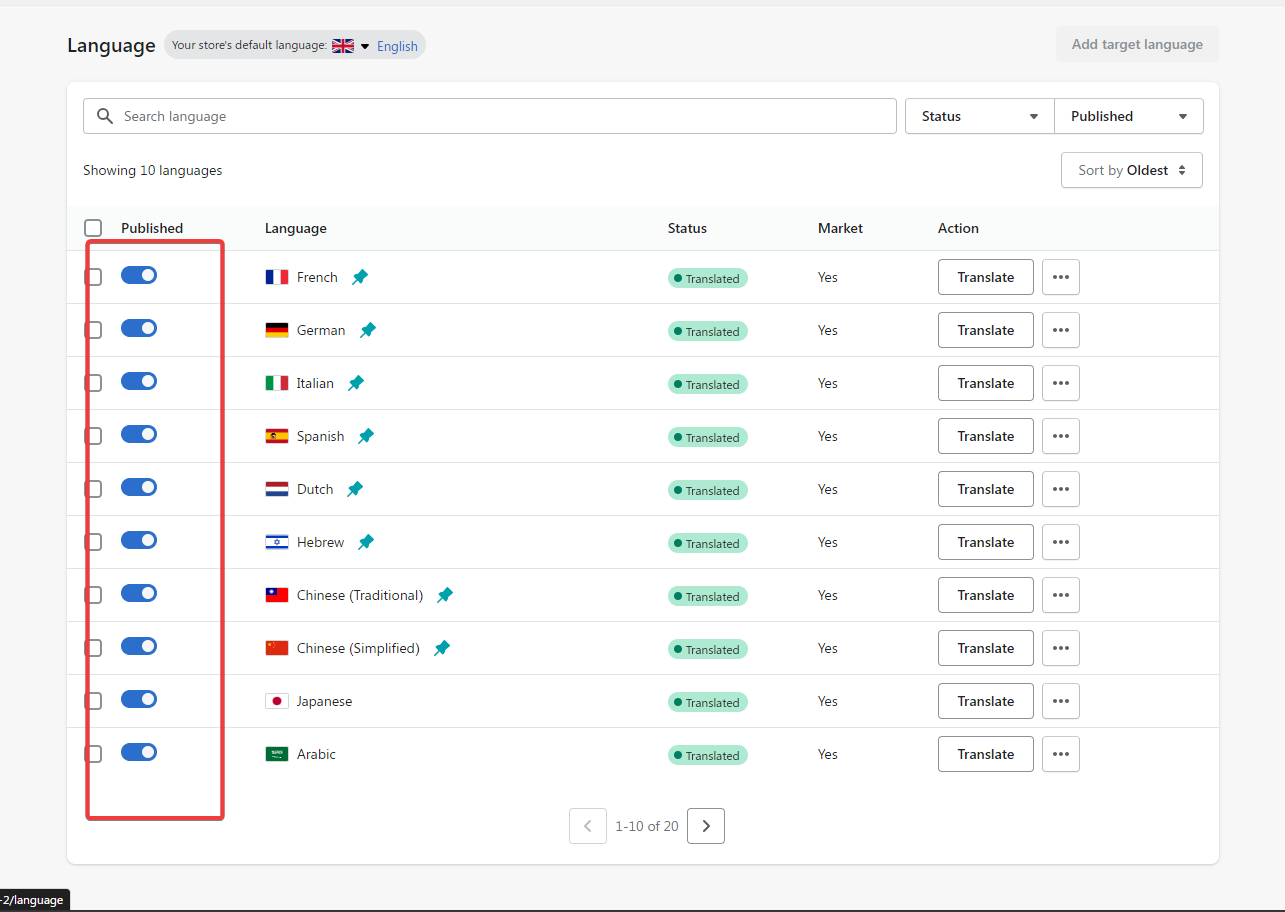
Step 2: Translate and Publish the Desired Target Languages
Translate and publish the desired target languages. You can also pin your preferred languages to prioritize them at the top of the switcher list later on.
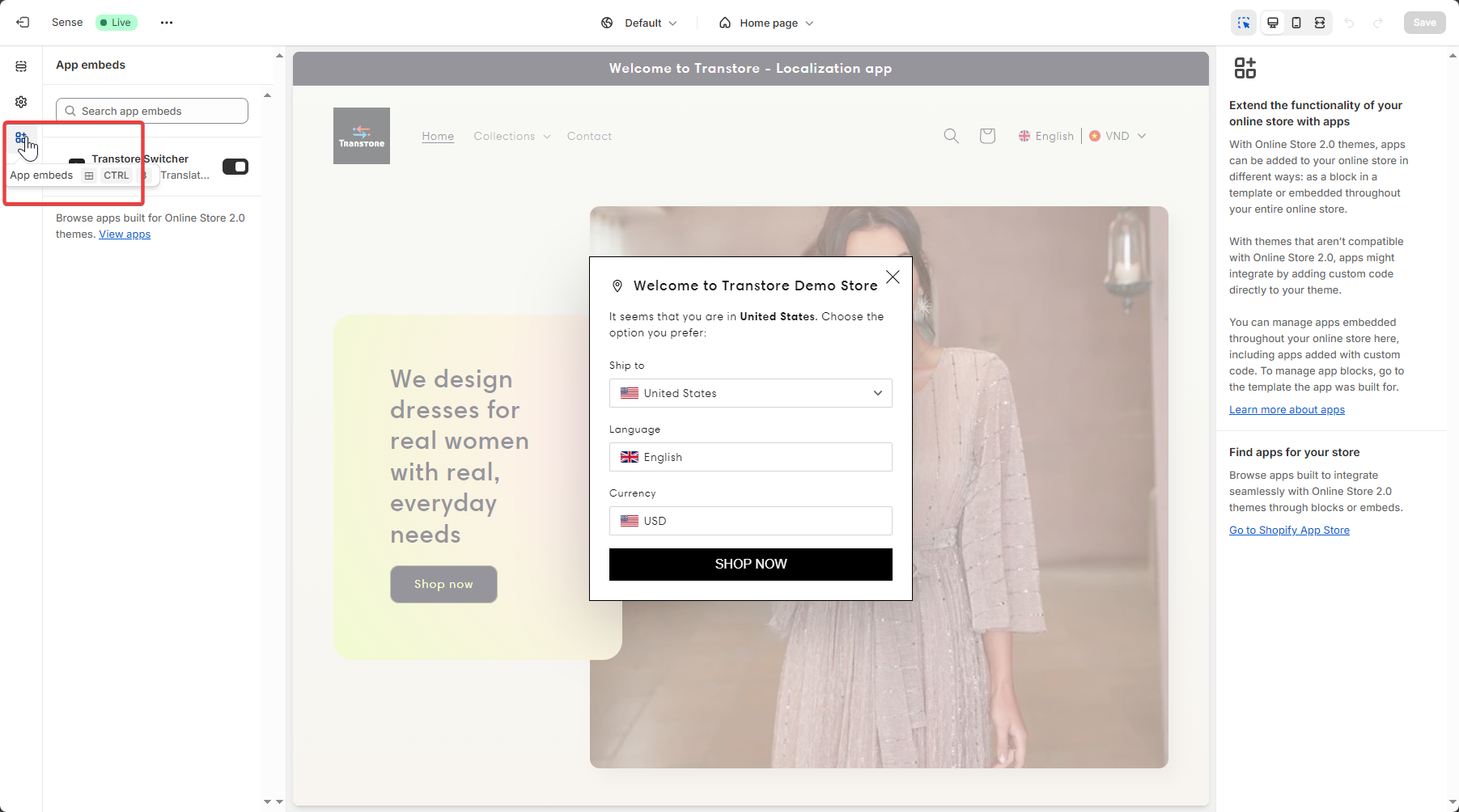
Step 3: Enable App Embed in Themes Editor
You will need to go to Switcher section, click on the link attached within the Transtore in-app interface and save the settings. Or you can directly go to Theme Editor, and enable our App Embed there.
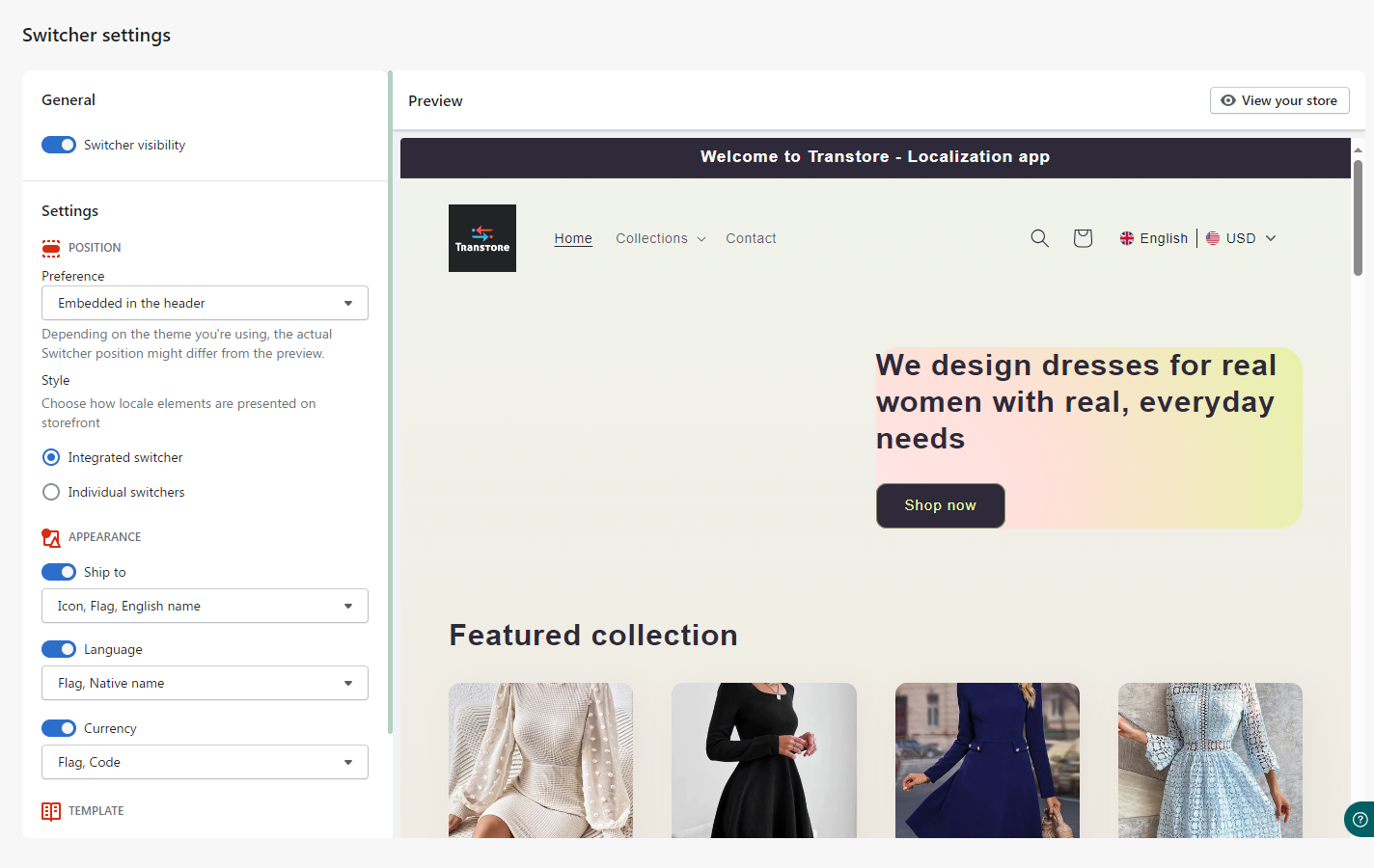
Step 4: Configure and Enable the Switcher
Display the translated content on your storefront using either a floating or embedded style. Check out the Preview screen to find the style that best suits your store.
Step 5: Optional - Set Up Geolocation
You can use this feature to show a recommendation pop-up to visitors or to automatically switch language/currency based on the visitor's location. Note that this feature will require a Premium plan.
Should you encounter any difficulties during the setup process, please don't hesitate to reach out to us at [email protected].
We're here to provide the assistance you need for a smooth experience.