How to Format Currency in Transtore
Using Transtore’s currency feature to control how prices appear across different markets. This guide walks you through display currency format and exchange rate settings, helping you present clear, localized pricing for customers worldwide.
Format Currency with Transtore
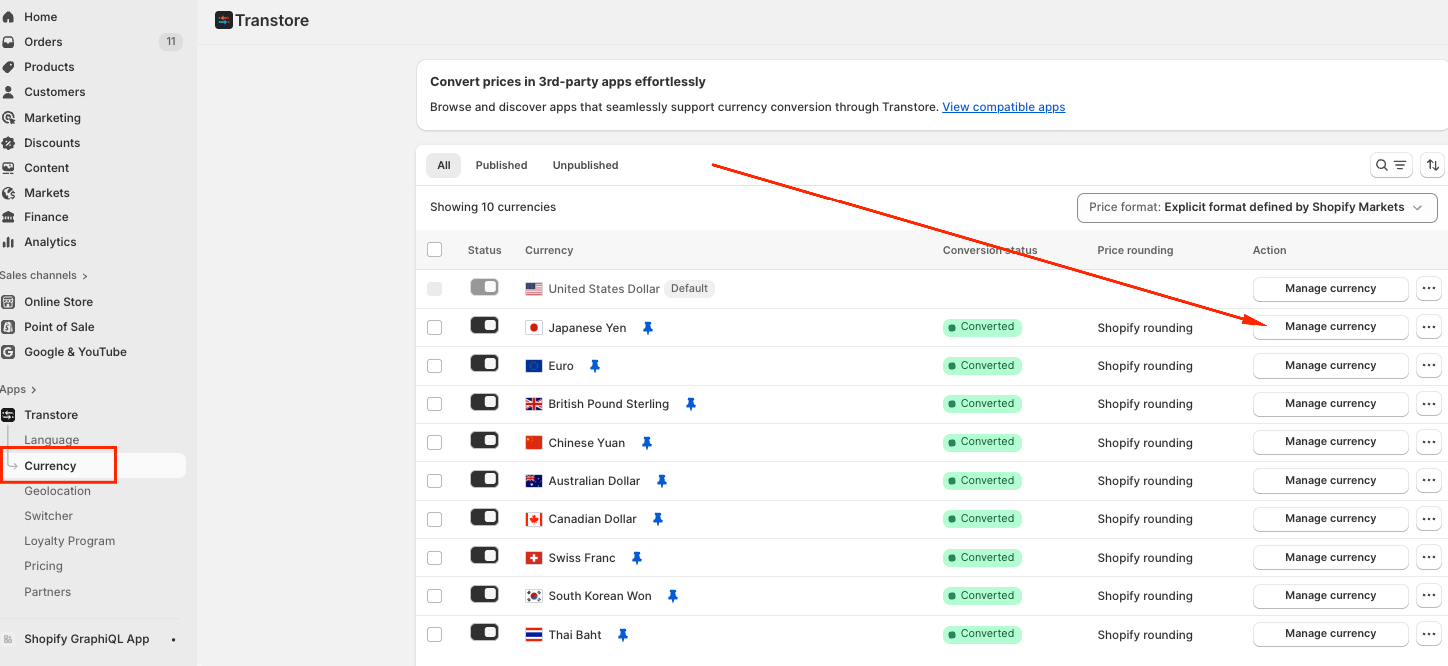
After finishing the currency setup, you can adjust settings such as currency rounding rules, exchange rates the Currency section -> Choose Manage currency:
I. Rounding rules
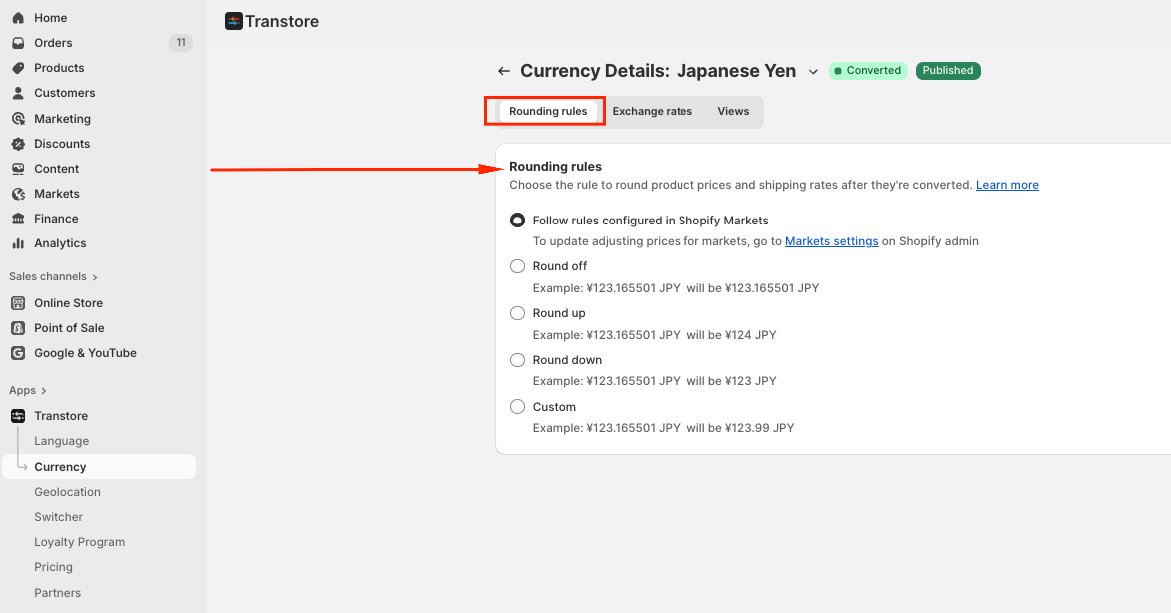
You can choose how to display the final price of the product and shipping rates based on the rounding rules. These are available options:
1. Follow Shopify Markets settings: Prices will follow the rounding rules configured in Shopify Markets. To adjust these settings, go to Markets in your Shopify admin.
2. Round off: Converted prices remain unchanged.
Example: ¥123.165501 → ¥123.165501
3. Round up: Prices are rounded up to the nearest whole number.
Example: ¥123.165501 → ¥124
4. Round down: Prices are rounded down to the nearest whole number.
Example: ¥123.165501 → ¥123
5. Custom rounding: Set your own rounding value by entering a decimal amount.
Example: ¥123.165501 → ¥123.99
II. Manage exchange rate
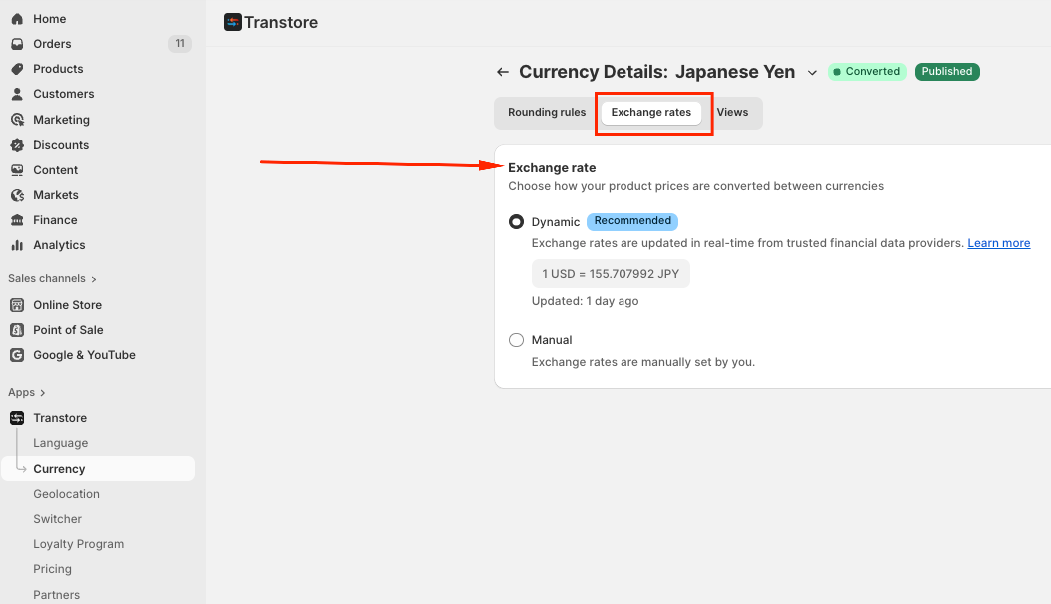
Transtore gives you two flexible options for handling exchange rates:
1. Auto Exchange Rate (Recommended):
- Exchange rates are updated automatically every day using reliable market data
- Refreshed based on the GMT+7 timezone
- Powered by trusted third-party financial data providers
- Ideal for most stores — once enabled, no manual updates are needed
NOTE:
- Transtore calculates all exchange rates using USD as the fixed base currency. This ensures consistent and stable conversions across all supported currencies.
- Please note that the base currency (USD) cannot be changed.
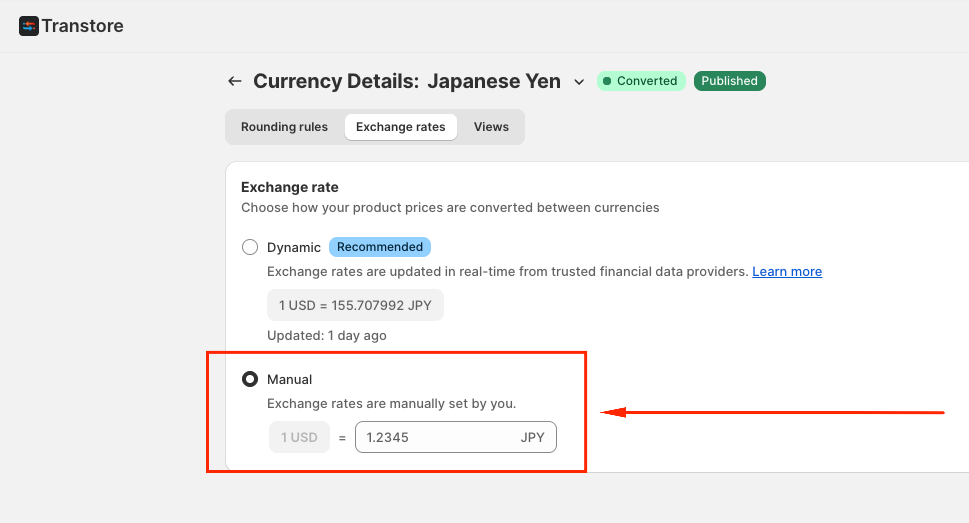
2. Manual Exchange:
- Define your own conversion rates
- Fully control pricing across selected currencies
Notes:
- Exchange rates and rounding rules for your store’s default currency cannot be changed.
- Clicking Reset to Default will restore all settings and switch back to auto exchange rates.
- Manual rates override automatic updates until you reset them.
- USD is the base currency for all conversions. You can only configure exchange rates from USD to other currencies.
- You can not change exchange rates for your default currency
III. Views
Transtore provides insight into how customers interact with languages and currencies on your storefront, so you can optimize your localization strategy.
With Traffic Overview, you can:
- See how many visitors select each language and currency over the last 30 days
- View a breakdown of currency usage by page, market, and country
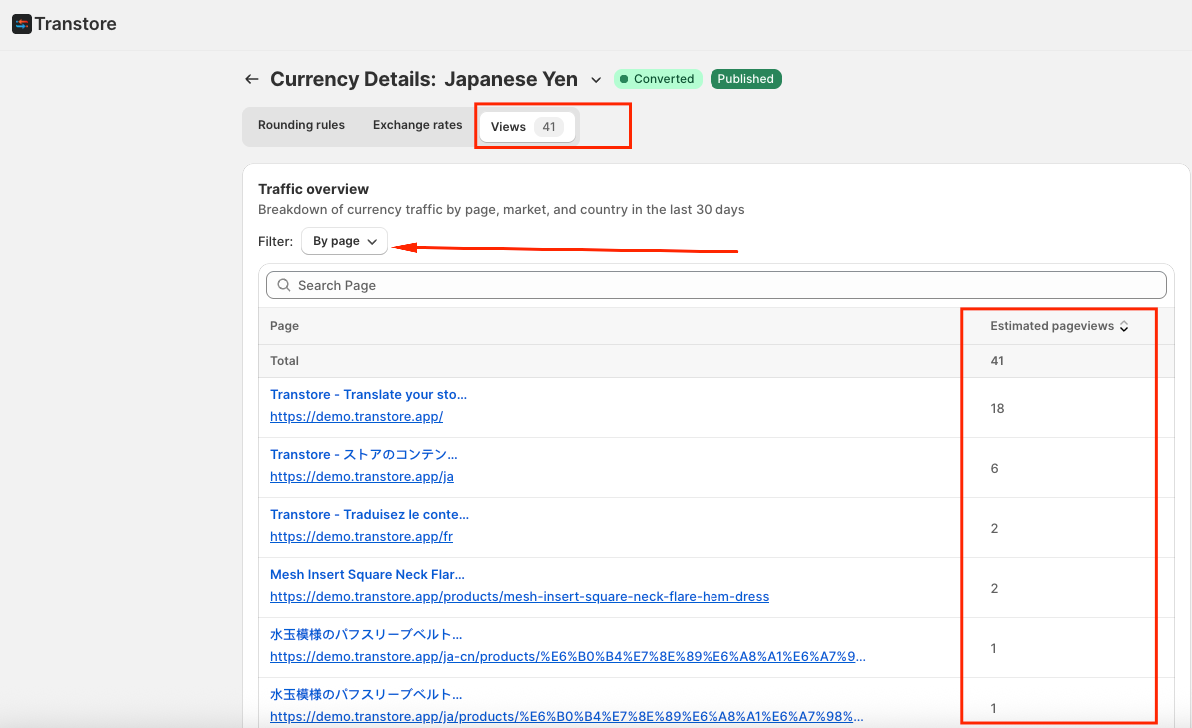
These insights make it easier to identify high-performing markets, focus on the right languages, and improve the overall shopping experience for international customers.
If you need further guidance or have any questions, don't hesitate to reach out to our support team via email at [email protected]. We'd be happy to help!