Use Glossary in Transtore
The Glossary lets you control how specific terms are translated across your store. You can provide a preferred translation for a term or keep it unchanged in selected target languages.
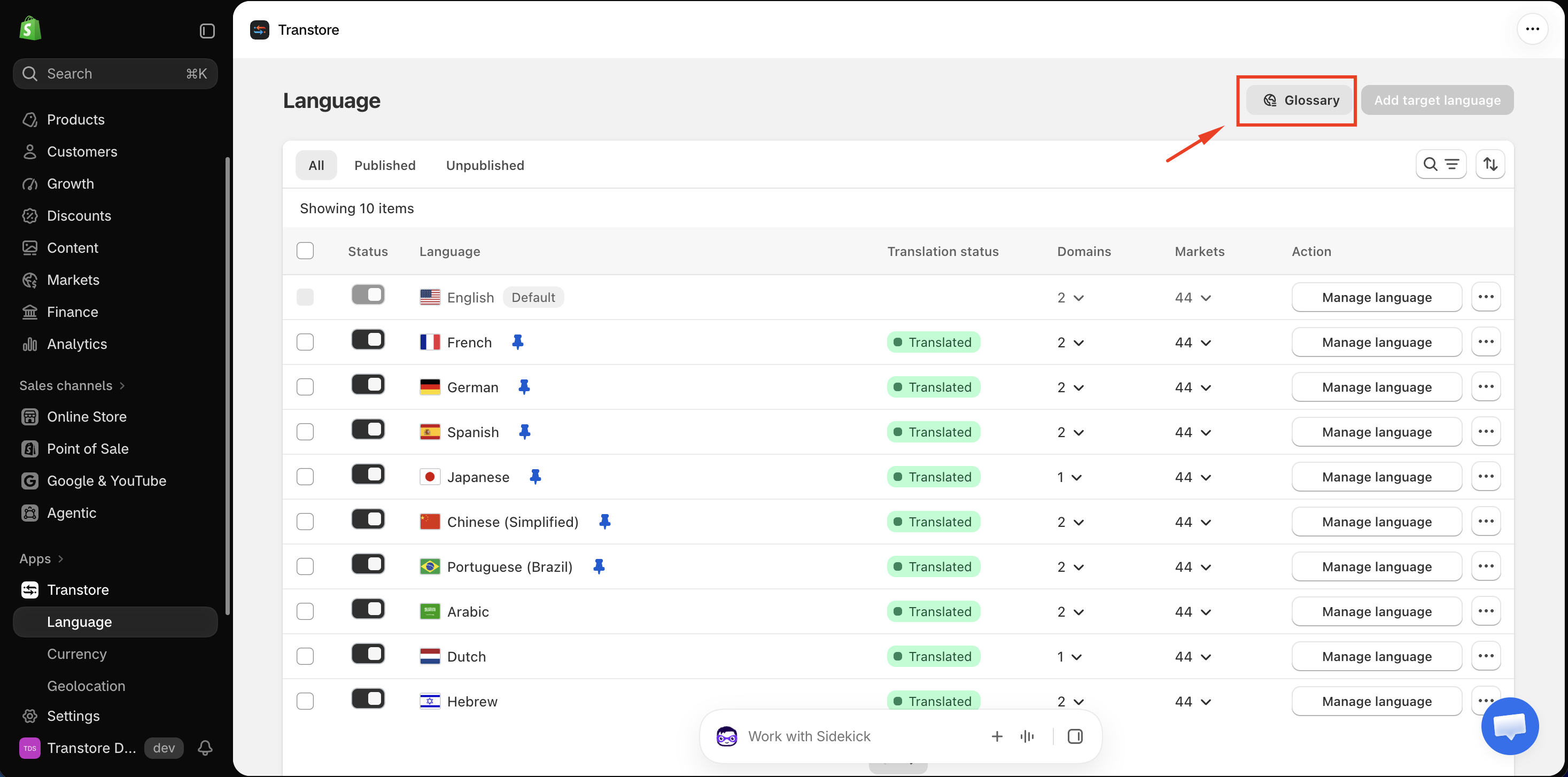
Step 1: Open the Glossary
- Open the Transtore app in your Shopify admin.
- Go to Language.
- Click Glossary.
Step 2: Create a glossary rule
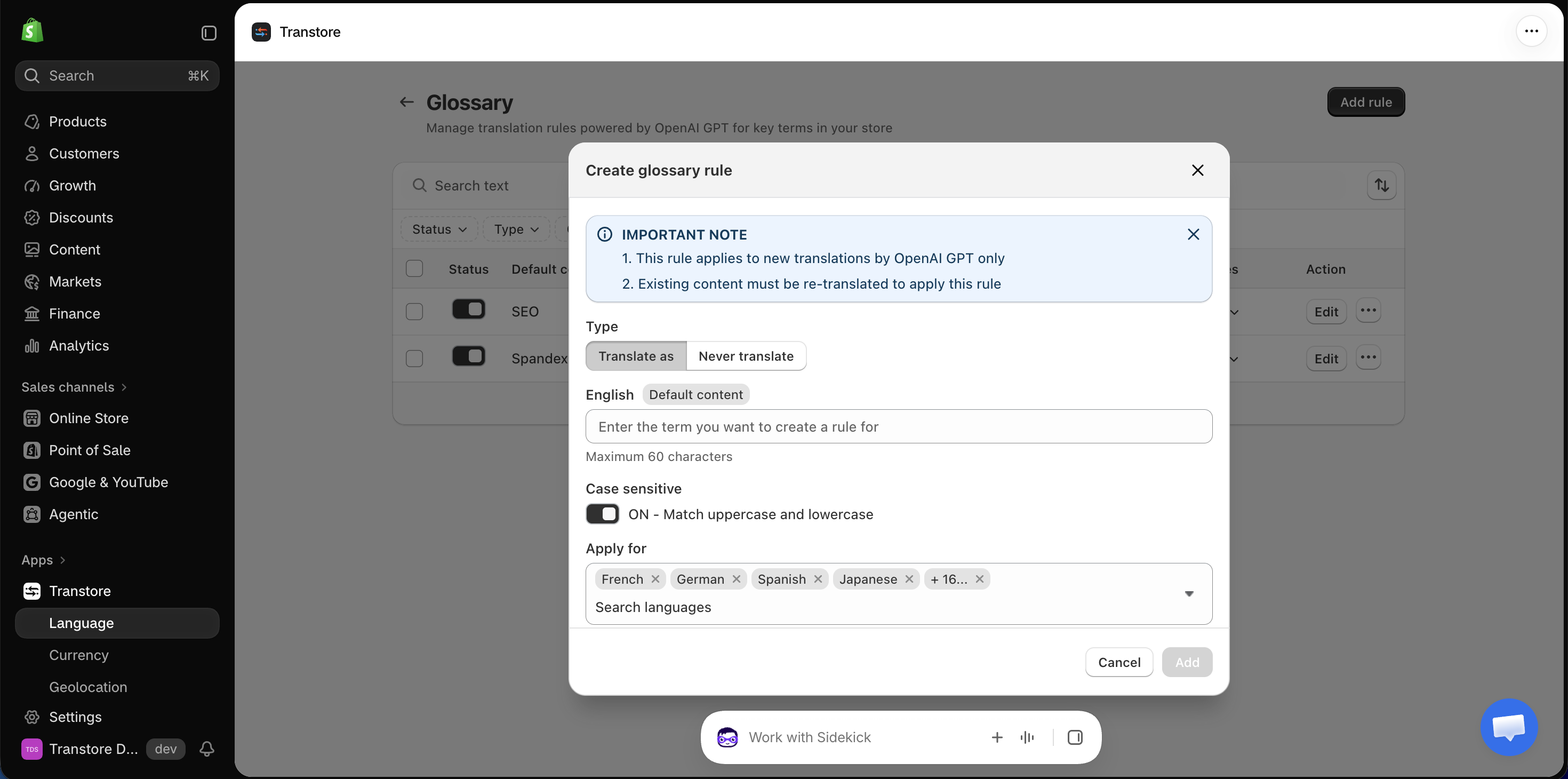
- Click Add rule.
- Select a rule type:
- Translate as - Use a specific translation for the term.
- Never translate - Keep the term unchanged.
- Enter the term from your default language in the Default content field. The term can contain up to 60 characters.
- Enable Case sensitive if the rule should apply only when the capitalization matches exactly.
- Under Apply for, select the target languages that should use the rule.
- If you selected Translate as, enter the translation to use for each target language.
- Click Add to save the rule.
Step 3: Apply the rule to existing content
- Glossary rules apply only to manual translations generated with OpenAI GPT. They do not apply to DeepSeek or Auto Translation.
- Existing translations are not updated automatically. To apply a new Glossary rule, re-translate the content with OpenAI GPT.
- Go to Language.
- Click Manage language next to the target language.
- Open the resource containing the translation you want to update, such as Product, Collection, Online store, Theme, or Notifications.
- Find the relevant content and click Improve translation with AI.
- Select OpenAI GPT and generate the translation again.
- Review and save the new translation.
The new manual translation will use any matching Glossary rules configured for that target language.
To stop Auto Translation for an entire section or a specific element, such as a product name, add the notranslate class to the relevant element. See Exclude specific content from Auto Translation for instructions.
To keep a term unchanged in manual translations generated with OpenAI GPT, create a Never translate Glossary rule and re-translate the content.
If you have any questions or need help creating a Glossary rule, please contact us at [email protected]. Our support team will be happy to assist you.