Add and manage currencies in Transtore
Transtore lets you convert prices into different currencies and display the converted prices to customers on your storefront.
Customers can pay in their local currency at checkout only when your store uses Shopify Payments. Otherwise, Shopify may display your store's default currency at checkout.
See Does Transtore support local currencies on the Checkout page? for more information.
Step 1: Set up currency formatting
-
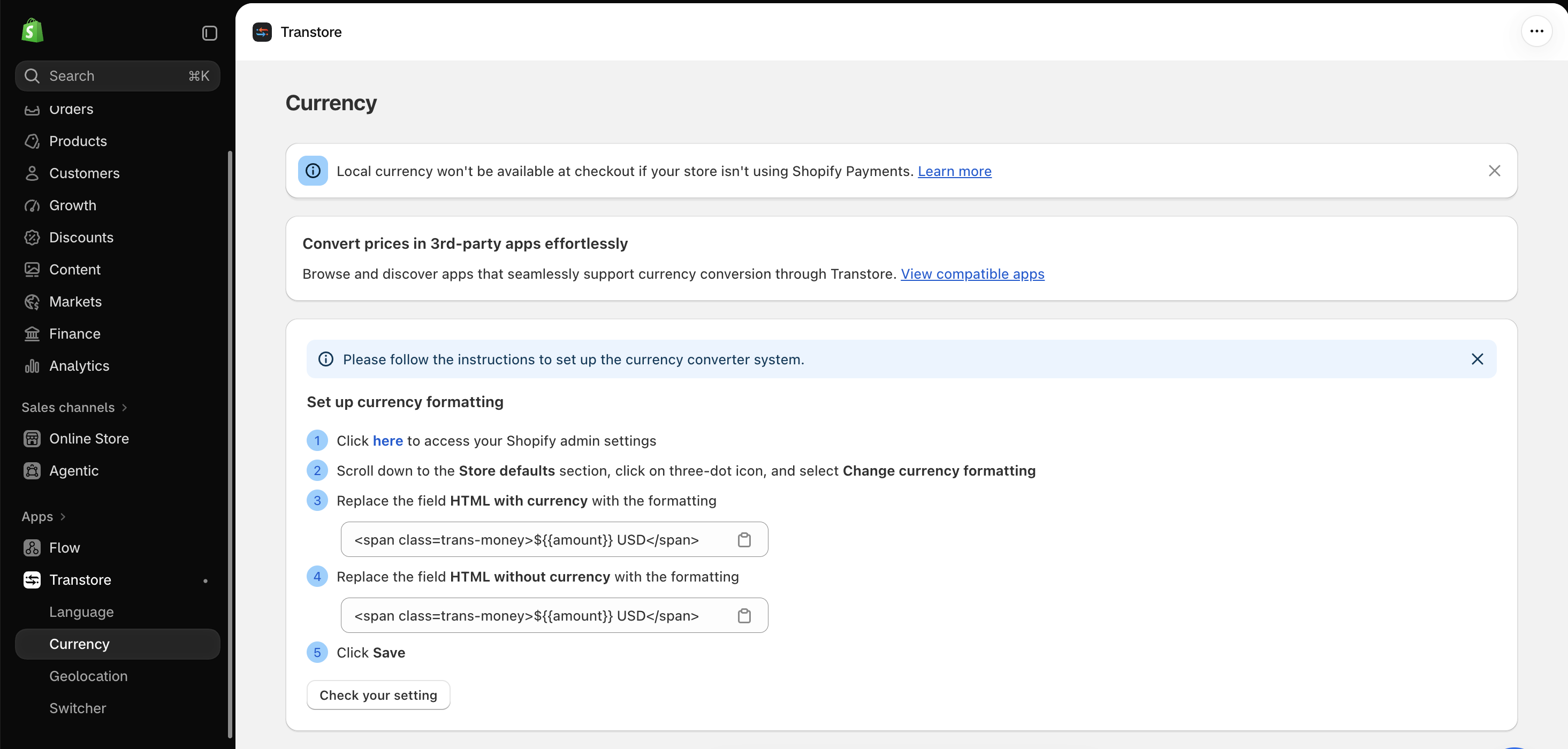
Open the Transtore app in your Shopify admin and go to Currency.
-
In the currency setup instructions, click here to open your Shopify admin settings.
-
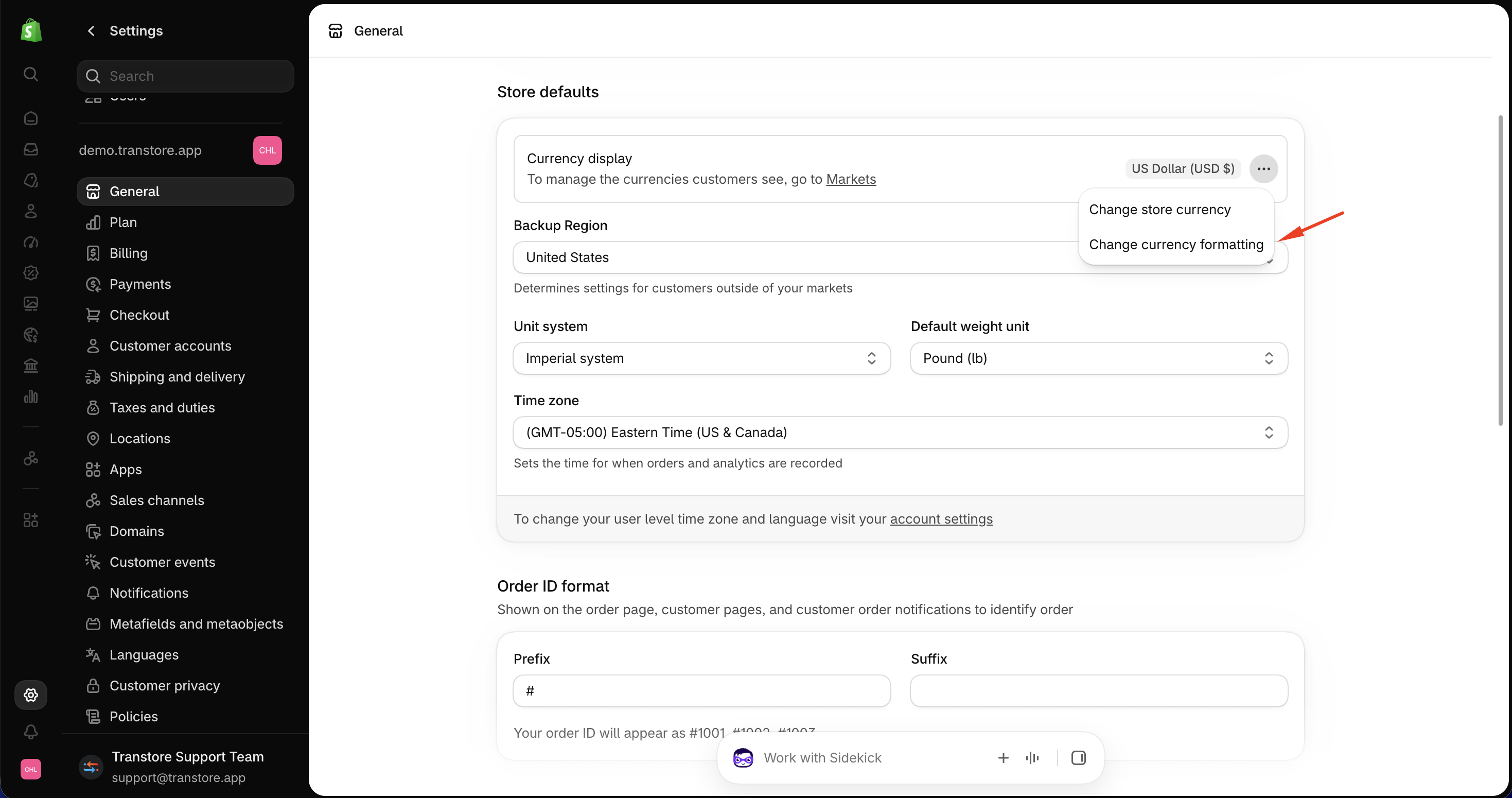
Scroll to Store defaults, click the three-dot menu next to Currency display, then select Change currency formatting.
-
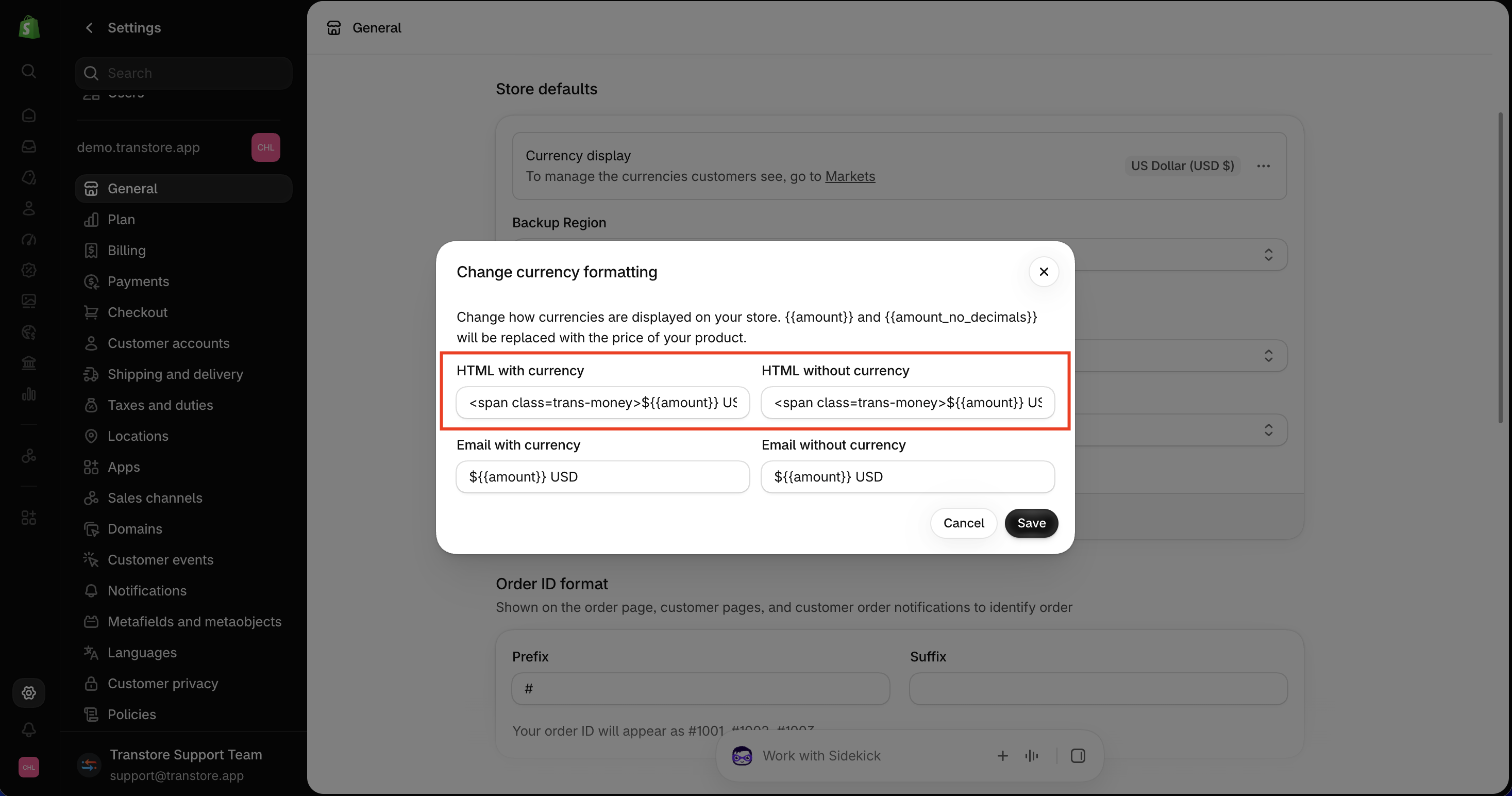
Replace HTML with currency with the formatting shown in Transtore.
-
Replace HTML without currency with the formatting shown in Transtore.
-
Click Save in Shopify.
-
Return to Transtore and click Check your setting.
Step 2: Add target currencies
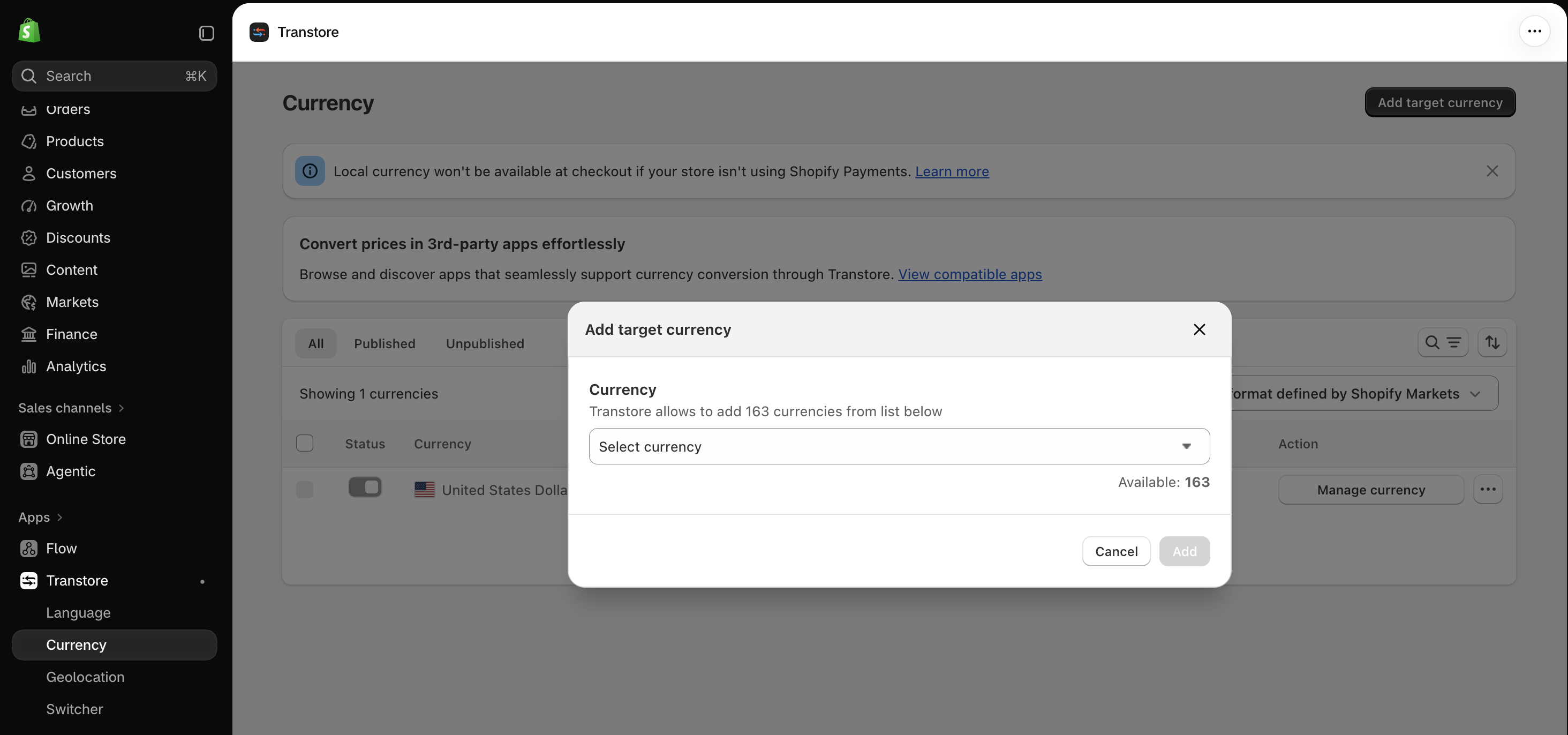
- In Transtore, go to Currency.
- Click Add target currency.
- Select the currencies you want to add to your store.
- Click Add.
Step 3: Manage target currencies
On the Currency page, click the three-dot menu beside the currency you want to manage.
- Change flag - Choose the flag displayed for the currency.
- Publish / Unpublish - Make the currency available on your storefront or hide it.
- Pin / Unpin - Add the currency to or remove it from the top of the currency list in the Switcher.
- Remove - Remove the currency from your store.
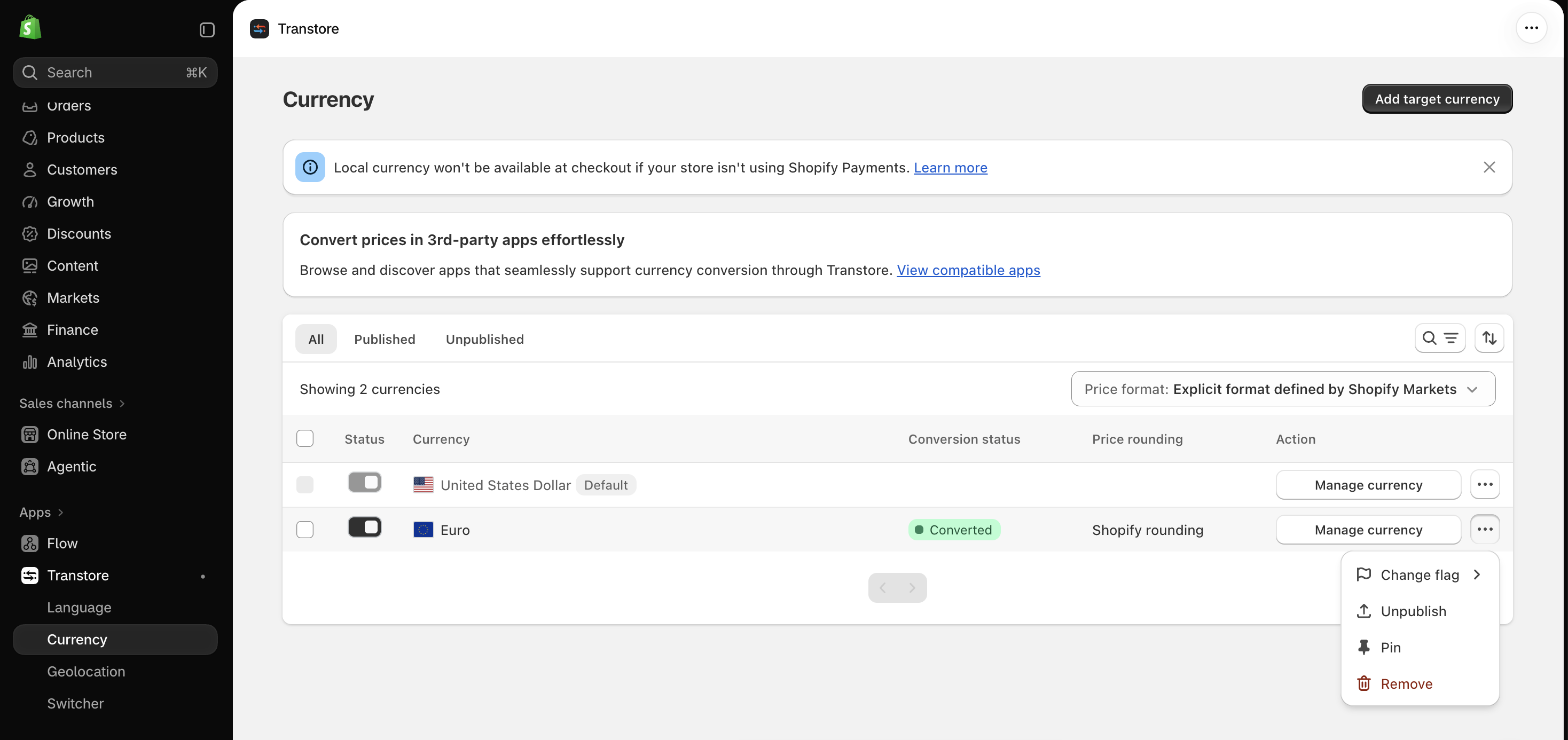
You can also use the Status toggle beside a currency to publish or unpublish it.
To let customers select a published currency on your storefront, make sure the Transtore Switcher is enabled. See Set up the Switcher for instructions.
If you have any questions or need help adding or managing currencies, please contact us at [email protected]. We’re happy to help.