Embed and position the Switcher in your header or footer
Transtore can automatically display the Switcher in your store's menu, footer, or both. If the Switcher does not appear in the expected location, or you want to move it to a specific position, you can manually add a Switcher container to your theme code.
Before positioning the Switcher, make sure the Transtore Widgets app embed is enabled and Switcher visibility is turned on in Transtore.
Step 1: Choose the Switcher position
- Open the Transtore app in your Shopify admin.
- Go to Switcher.
- Under Customization, select Desktop or Mobile.
- Open Position.
- Under Choose position, select Embedded in the page.
- Under Placement, choose whether to display the Switcher in the menu, footer, or both.
- Repeat these steps for the other device.
- Open your storefront and check the Switcher's position.
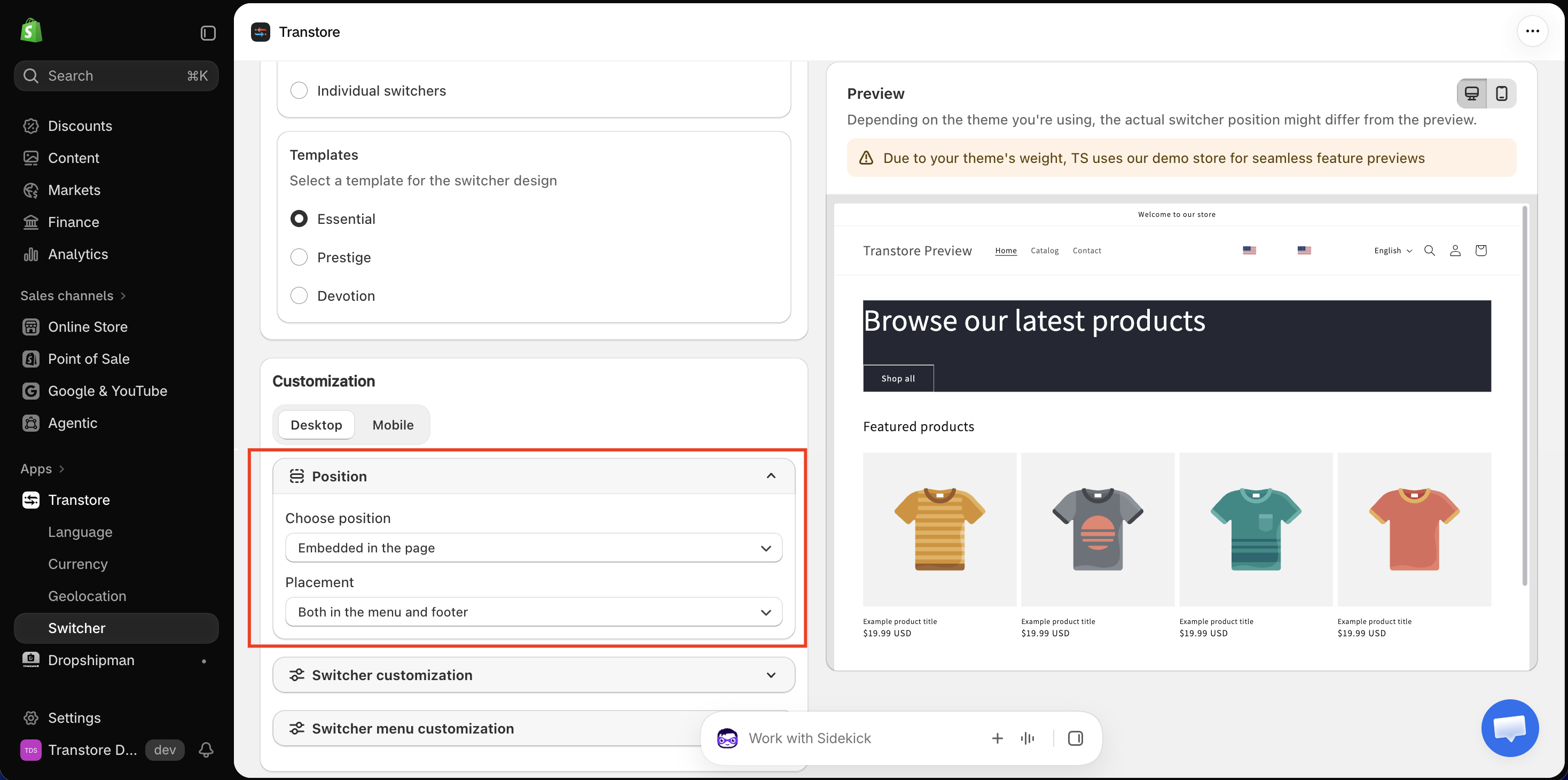
If the Switcher appears in your preferred position, no further action is required. If it does not appear or you want to move it to another position, continue to Step 2.
Step 2: Add the Switcher to your preferred position
This step requires basic knowledge of Shopify theme code. If you are unfamiliar with theme editing or are unsure where to add the container, contact us at [email protected]. Our support team will help you position the Switcher.
- Choose the container that matches the device and location where you want to display the Switcher.
Menu - desktop
<div id="ts-switcher-manual-desktop"></div>
Menu - mobile
<div id="ts-switcher-manual-mobile"></div>
Footer - desktop
<div id="ts-switcher-footer-manual-desktop"></div>
Footer - mobile
<div id="ts-switcher-footer-manual-mobile"></div>
- In your Shopify admin, go to Online Store > Themes.
- Find your active theme, click the three-dot menu, then select Edit code.
- Open the file for the area where you want to place the Switcher:
- For the menu, locate the header section or snippet.
- For the footer, locate the footer section or snippet.
- Paste the selected container in your preferred position.
- Click Save.
Step 3: Check the Switcher on your storefront
Open your storefront on desktop and mobile, then confirm that the Switcher appears in the selected position.
If you have any questions or need help positioning the Switcher, please contact us at [email protected]. We’re happy to help.