Set up Redirection in Transtore
Transtore provides three Redirection tools that help visitors reach the appropriate page or localized version of your store:
- Market redirects - Direct visitors to the URL assigned to their market.
- Automatic redirects - Redirect broken links to active pages.
- Country and IP blocker - Restrict access from selected countries or IP addresses.
Each tool works independently, so you can enable and configure only the options your store needs.
To access them, open the Transtore app, go to Geolocation, then select Redirection.
1. Market redirects
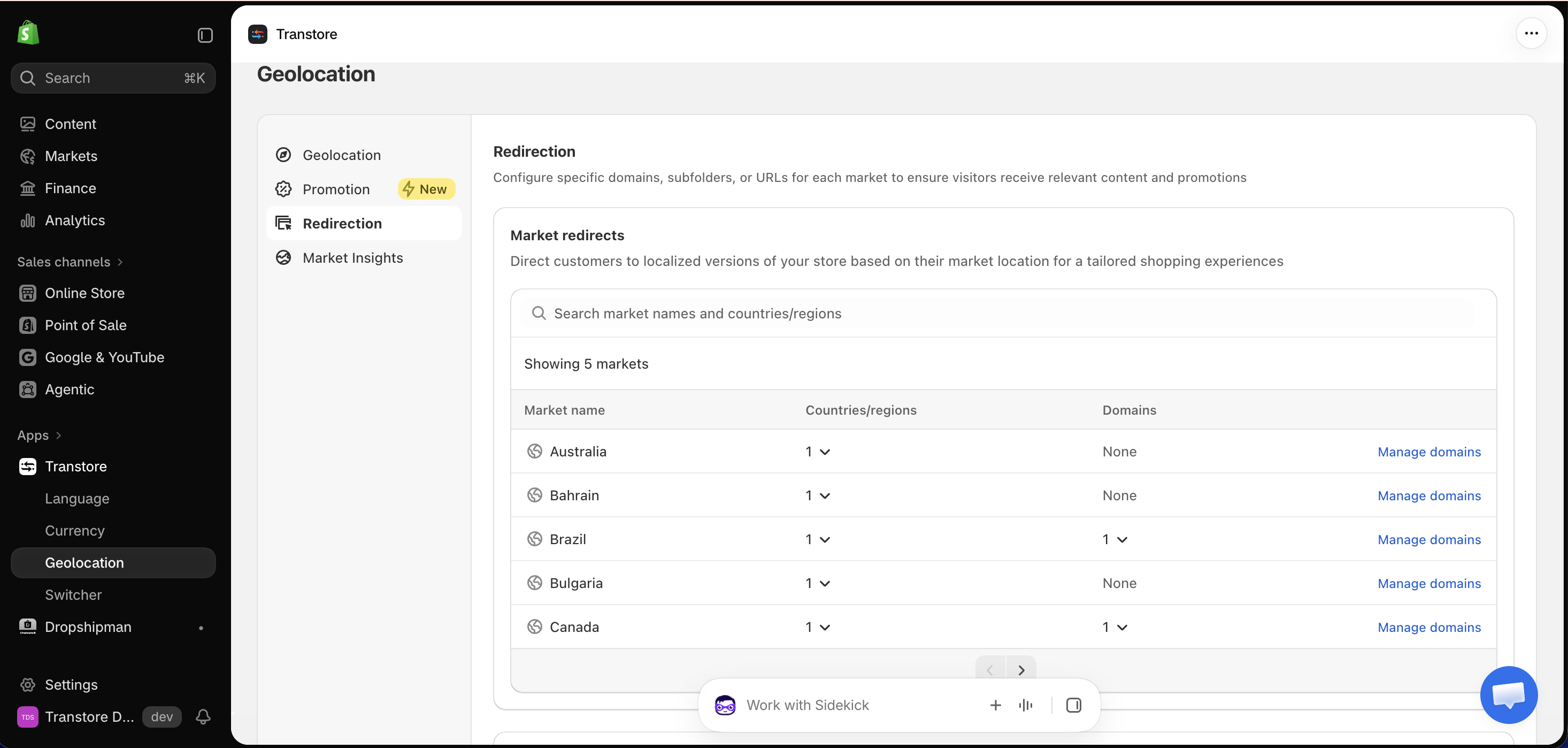
Market redirects send visitors to the domain, subfolder, or URL assigned to their Shopify Market.
For example, visitors from France can be directed to the French version of your store, such as example.com/fr.
To configure a market redirect:
-
Under Market redirects, find the market you want to configure.
-
Click Manage domains.
-
Select one of the following options:
- Use Shopify's domain settings - Use the domain, subfolder, or URL configured for the market in Shopify. Click Edit on Shopify if you need to update it.
- Use Transtore settings - Enter the URL you want Transtore to use for this market.
-
Click Save.
2. Automatic redirects
Automatic redirects send visitors to an active page when they open a broken URL that returns a 404 error.
When a broken URL is detected, Transtore checks for redirects in the following order:
- URL redirects
- Pattern redirects
- Automatic redirects
To configure an Automatic redirect, turn on its Status, then enter the destination path under Assign to.
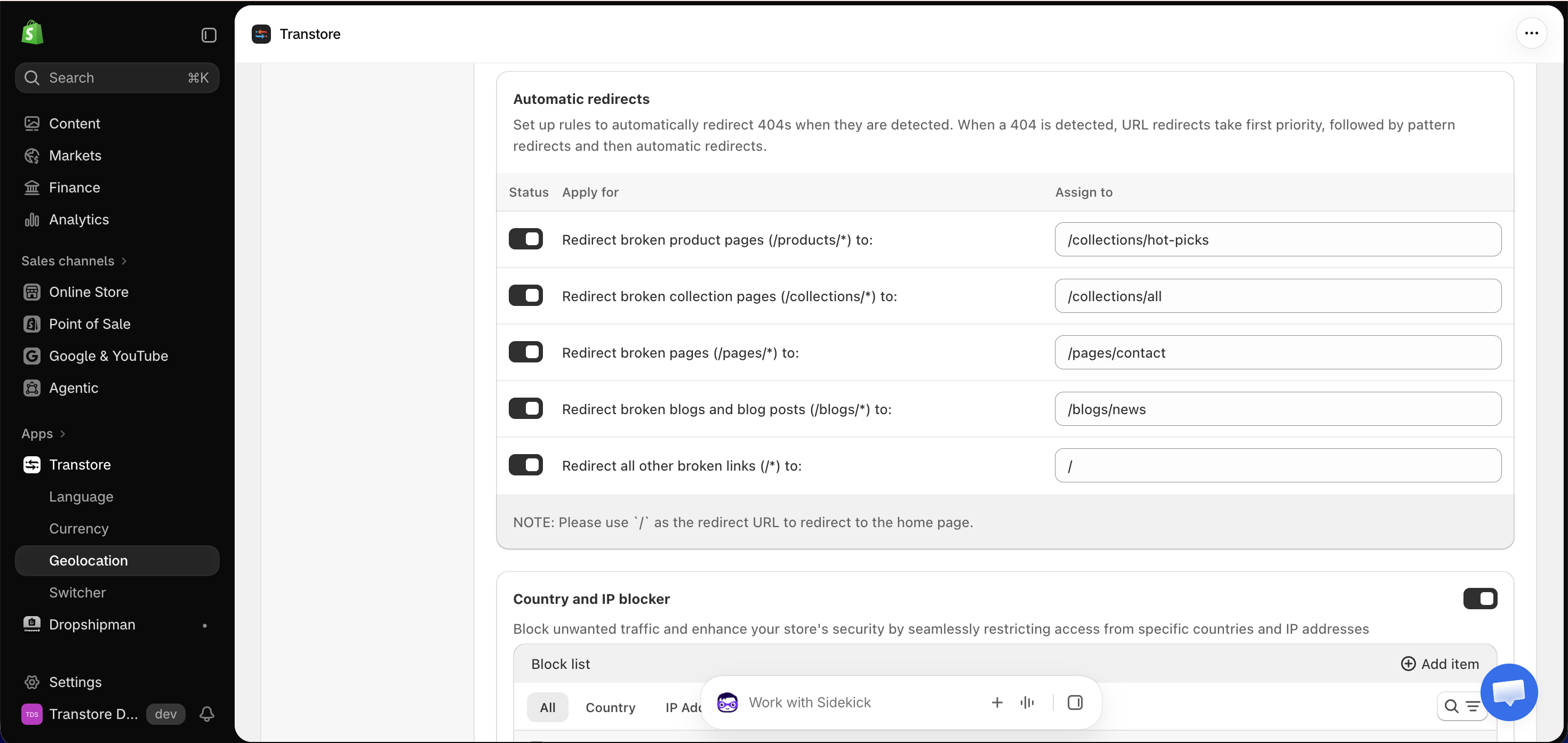
| Broken URL | Example destination |
|---|---|
Product pages (/products/*) | /collections/hot-picks |
Collection pages (/collections/*) | /collections/all |
Pages (/pages/*) | /pages/contact |
Blogs and blog posts (/blogs/*) | /blogs/news |
All other broken links (/*) | / |
Enter / as the destination path to redirect visitors to your homepage.
3. Country and IP blocker
The Country and IP blocker lets you restrict access to your store from selected countries or IP addresses. Visitors who match an item on the block list will be redirected to the URL you specify.
To add an item to the block list:
- Turn on Country and IP blocker.
- Click Add item.
- Select Country or IP Address.
- Enter the country or IP address you want to block.
- Under Redirect them to URL, enter the page where blocked visitors should be sent.
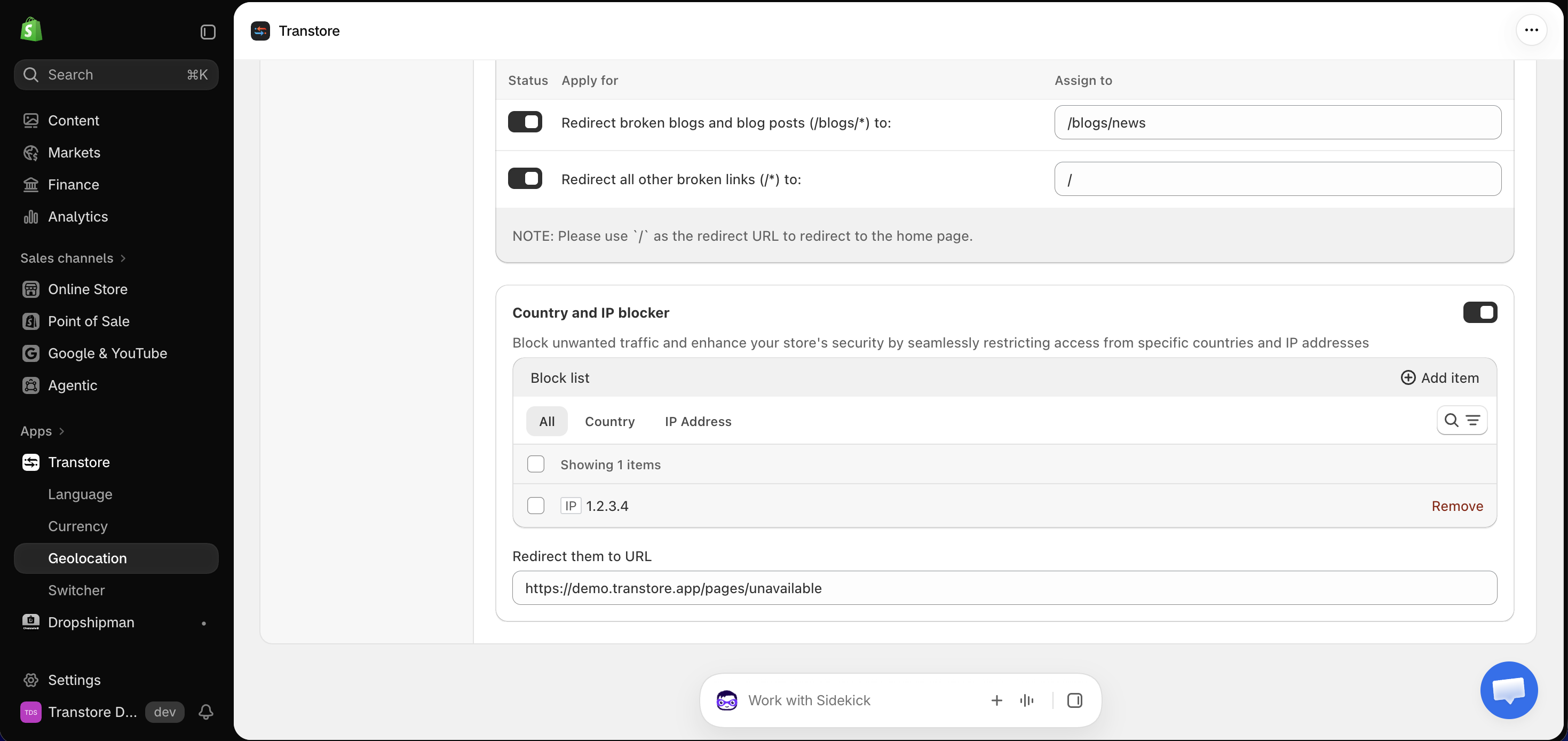
Use the All, Country, and IP Address tabs to review and manage the items on your block list.
If you have any questions or need help configuring Redirection, please contact us at [email protected]. Our support team will be happy to assist you.