Set up Promotions in Transtore
Use Promotions to display location-based offers in your Geolocation modal.
note
Promotions are displayed in the Geolocation modal. Enable Show recommendations in Geolocation before creating a promotion.
Step 1: Open Promotions
- Open the Transtore app in your Shopify admin.
- Go to Geolocation.
- Click Promotion.
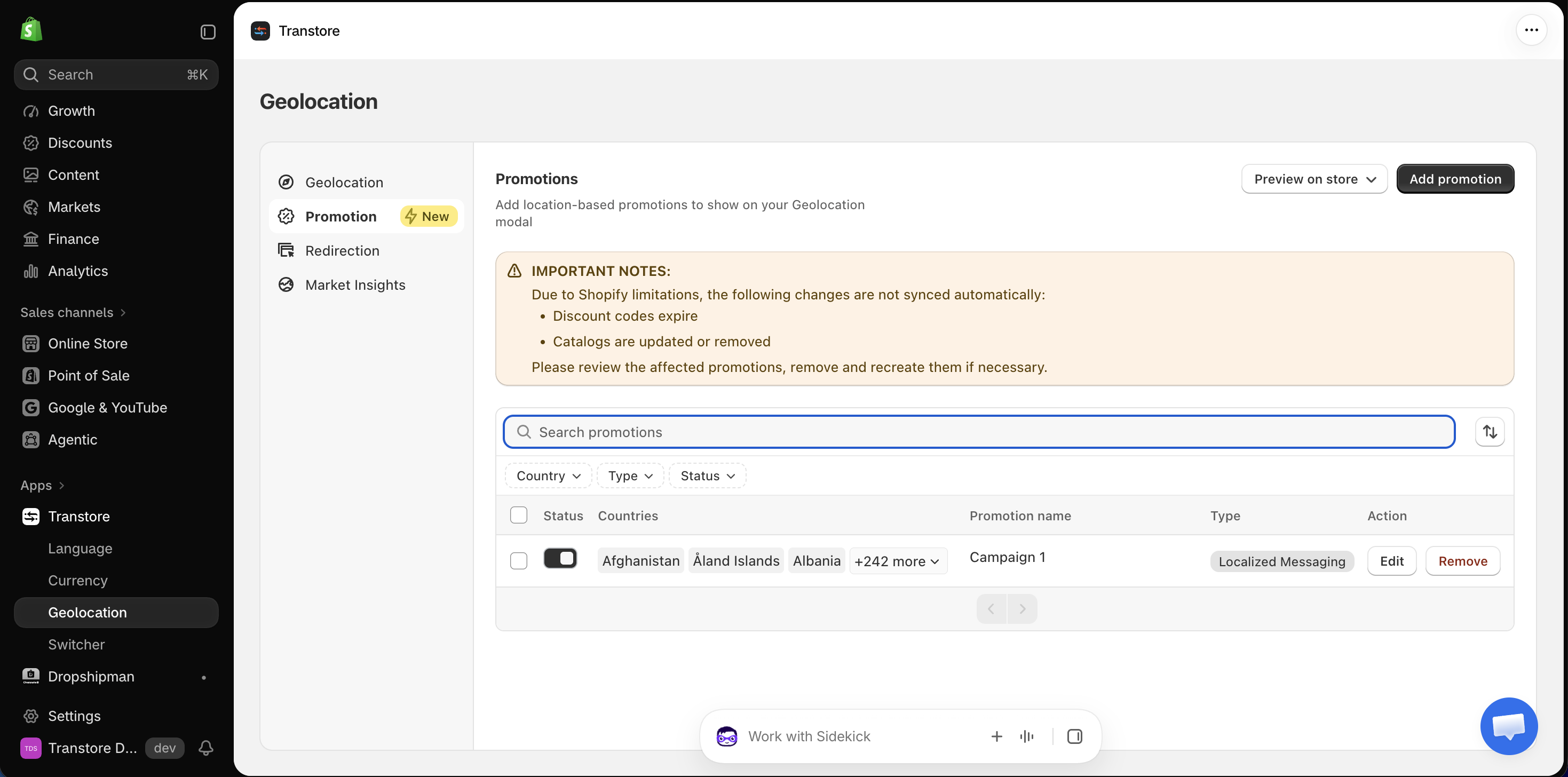
Step 2: Create a promotion
- Click Add promotion.
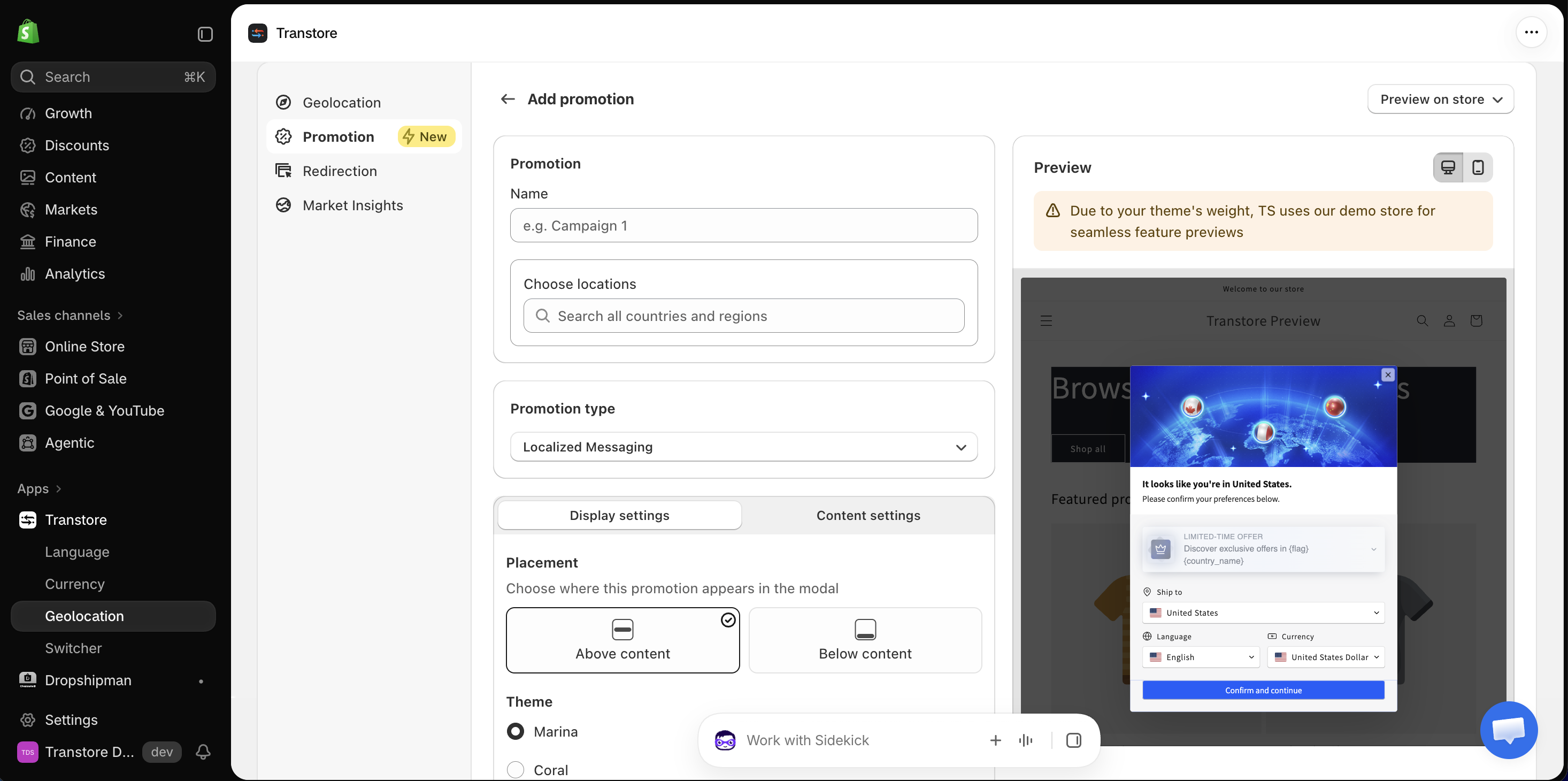
- Enter a name for your promotion.
- Under Choose locations, select the countries or regions where the promotion should appear.
- Under Promotion type, select Localized Messaging.
This option displays a custom message for visitors based on their location. 5. Open Display settings and select the preferred theme for the promotion. 6. Open Content settings and enter:
- Title
- Label for badge
- Body content
You can use the following variables in the title:
{flag}: Displays the selected country's flag.{country_name}: Displays the visitor's country or region.{language}: Displays the selected language.{currency}: Displays the selected currency.
- Click Save to create the promotion.
Step 3: Manage a promotion
From the Promotions page, you can:
- Use the Status toggle to show or hide a promotion.
- Click Edit to update it.
- Click Remove to delete it.
- Use the country, type, and status filters to find a promotion.
- Click Preview on store to check how the promotion appears in the Geolocation modal.
note
Due to Shopify limitations, changes are not synced automatically when:
- Discount codes expire.
- Catalogs are updated or removed.
Review the affected promotions, then remove and recreate them if necessary.
If you have any questions or need help setting up Promotions, please contact us at [email protected]. We're happy to help.