How to Exclude Specific Content from Auto Translation
Transtore automatically translates content across your storefront to help customers browse in their preferred language. However, there may be situations where certain content should remain unchanged regardless of the selected language.
Common examples include:
- Brand names
- Product names
- Product vendors
- Product variants (Size, Color, Material, etc.)
- Footer content
- Custom text
To prevent Transtore from translating specific content, you can add the notranslate class to the HTML element that contains that content.
This guide requires basic knowledge of Shopify theme editing and HTML.
Because every Shopify theme is structured differently, there is no fixed file location for the content you want to exclude from translation.
How the notranslate Class Works
Transtore skips any content wrapped inside an element that contains the notranslate class.
For example:
<div class="notranslate">
  Your content here
</div>
Any text inside this element will remain unchanged in all languages.
Step 1: Access Your Theme Code
- From your Shopify admin, go to Online Store → Themes.
- Select your active theme.
- Click ⋮ → Edit code.
Step 2: Locate the Content in Your Theme
Because every Shopify theme is built differently, there is no fixed file location for product titles, vendors, variants, or custom content.
We recommend using your browser's Inspect tool to identify the HTML element that contains the content you want to exclude from translation.
Find the Element Using Inspect
- Open your storefront.
- Right-click the content you want to exclude from translation.
- Select Inspect.
- In the developer tools panel, locate the HTML element that contains the text.
- Note any unique classes, IDs, or Liquid variables associated with that element.
- Return to your Shopify theme code and search for the corresponding class name, ID, or Liquid variable.
Step 3: Add the notranslate Class
Once you have located the correct element in your theme code, add the notranslate class to its wrapper element.
If the element already has a class attribute:
<h1 class="product-title notranslate">
  Product Name
</h1>
If the element does not have a class attribute:
<h1 class="notranslate">
  Product Name
</h1>
Common Examples
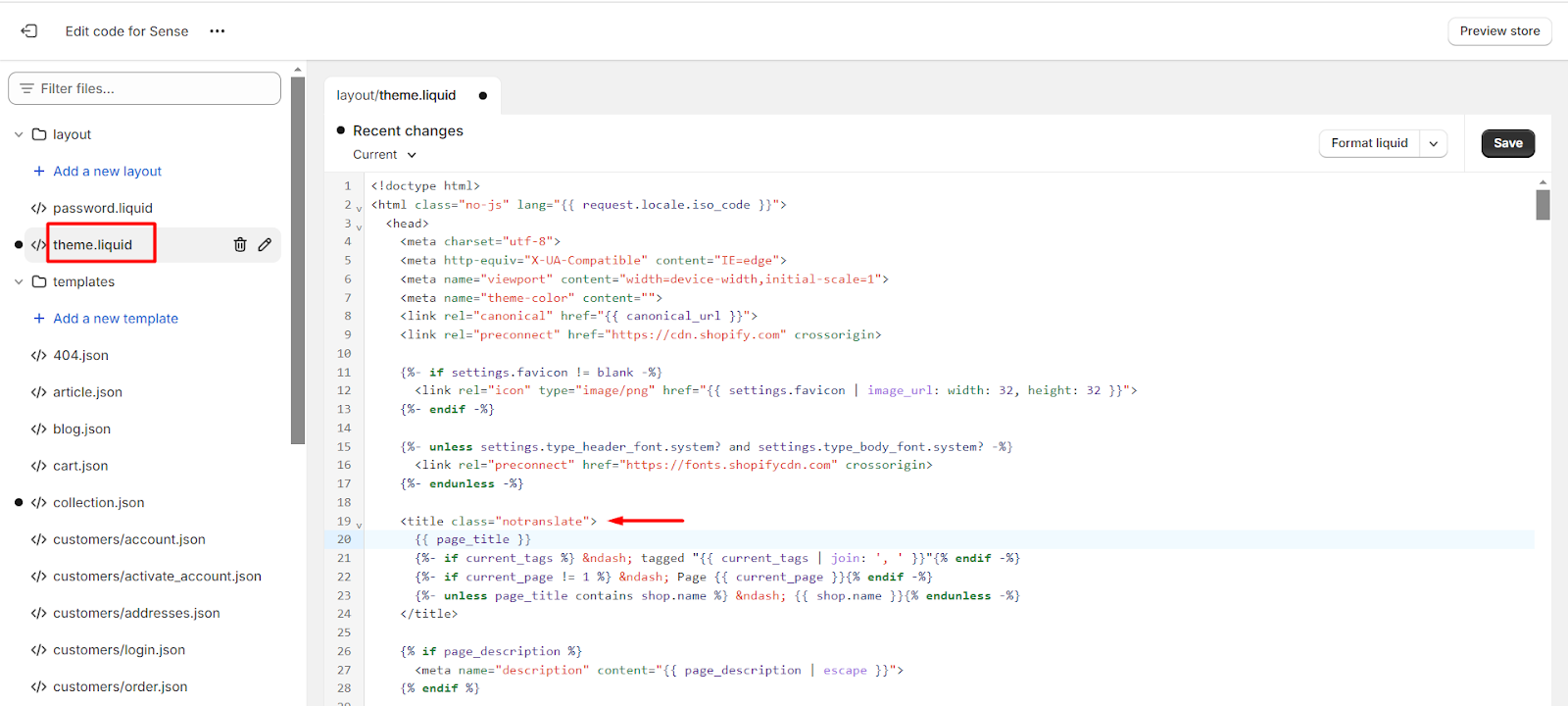
Exclude Brand Name
If you want your brand name in the browser tab title to remain unchanged:
- Open the
theme.liquidfile. - Locate the
<title>element. - Identify where the brand name is rendered.
- Add the
notranslateclass to the appropriate wrapper element.
Exclude Product Title
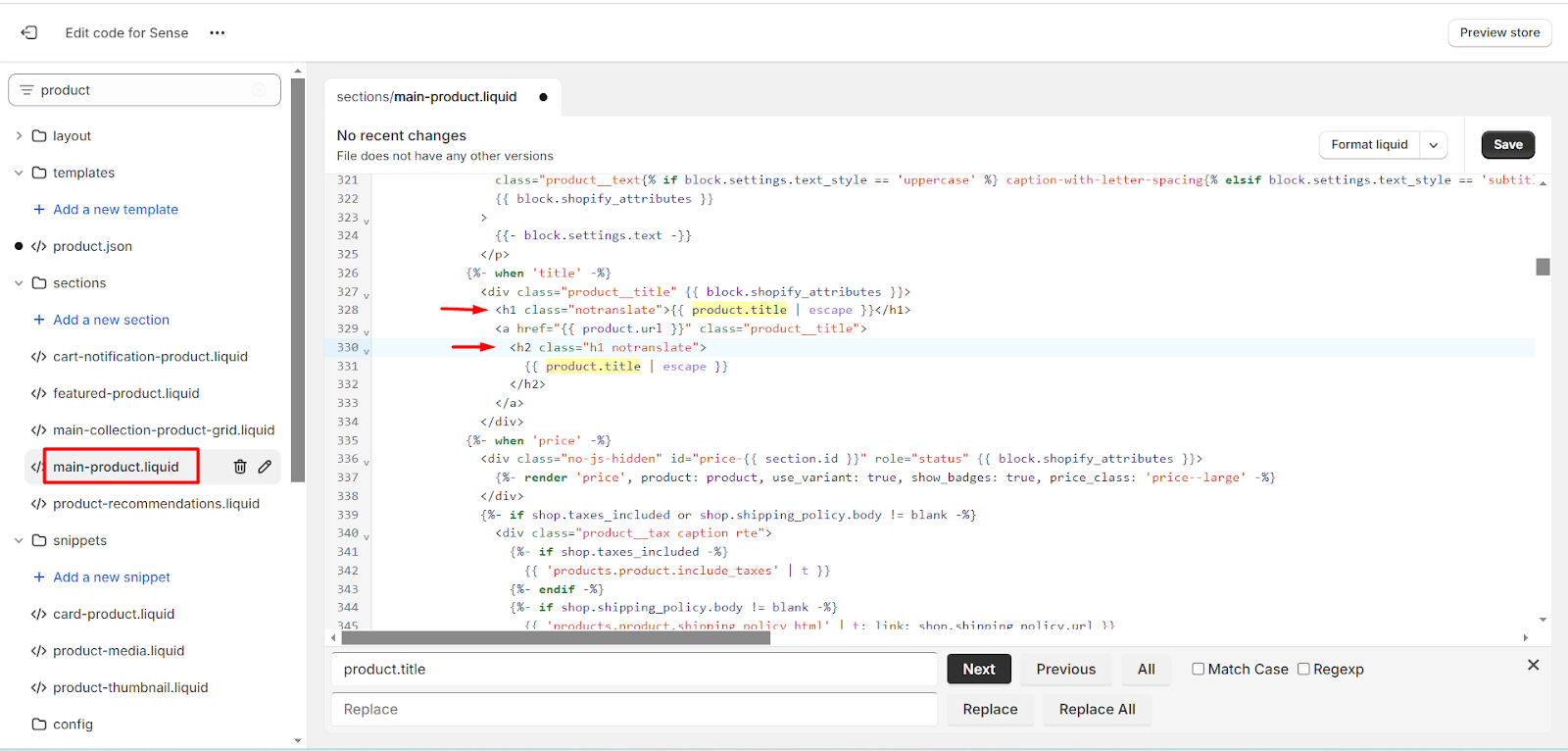
If you want product names to remain unchanged:
- Open a product page on your storefront.
- Right-click the product title and select Inspect.
- Identify the HTML element containing the product title.
- Search for the corresponding code in your theme.
- Add the
notranslateclass to the wrapper element.
Common Liquid variables include:
product.titleproduct_card.titleproduct-single_title
Exclude Product Vendor
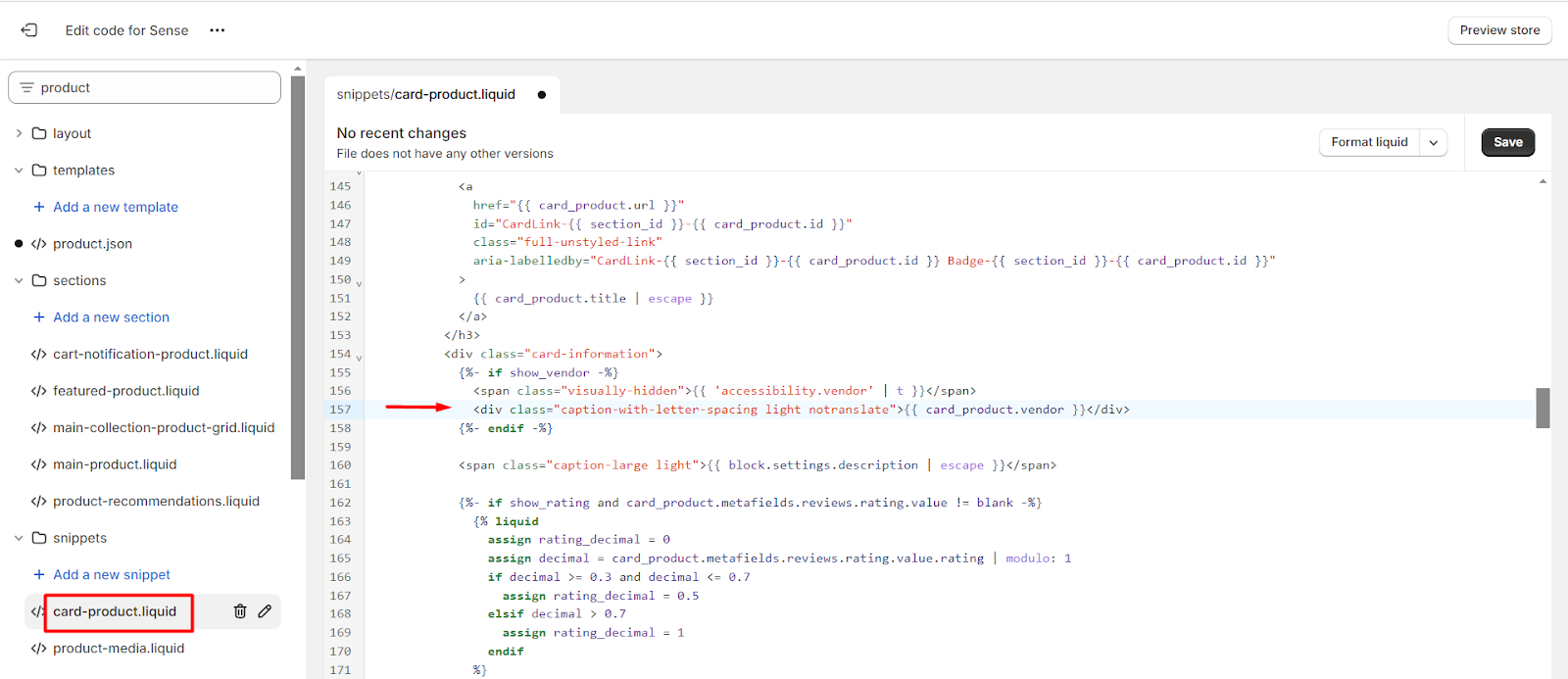
If you want vendor names to remain unchanged:
- Inspect the vendor name on the storefront.
- Locate the corresponding code in your theme.
- Add the
notranslateclass to the wrapper element.
Common Liquid variables include:
product.vendorcart-product.vendor
Exclude Footer Content
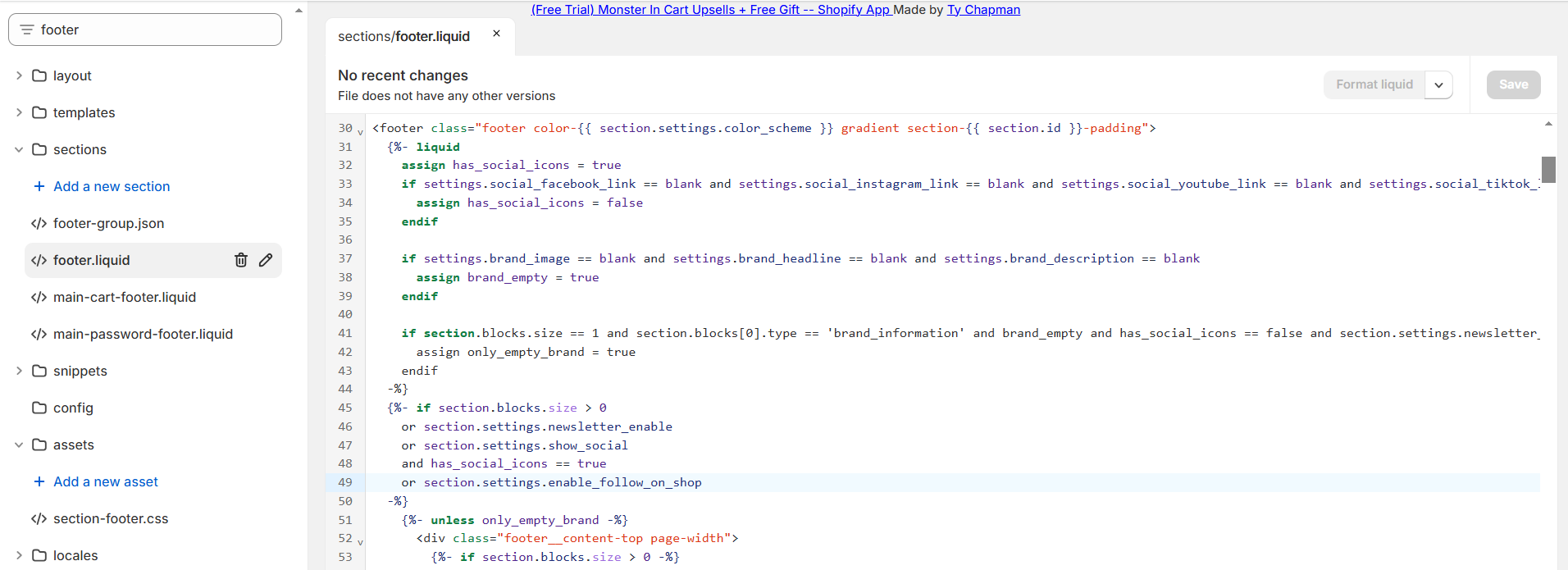
If you want all footer content to remain unchanged:
- Inspect any content inside the footer.
- Identify the main footer wrapper element.
- Locate the corresponding code in your theme.
- Add the
notranslateclass to the footer wrapper.
Example:
<footer class="footer notranslate">
  <!-- Footer content -->
</footer>
Exclude Product Variants and Options
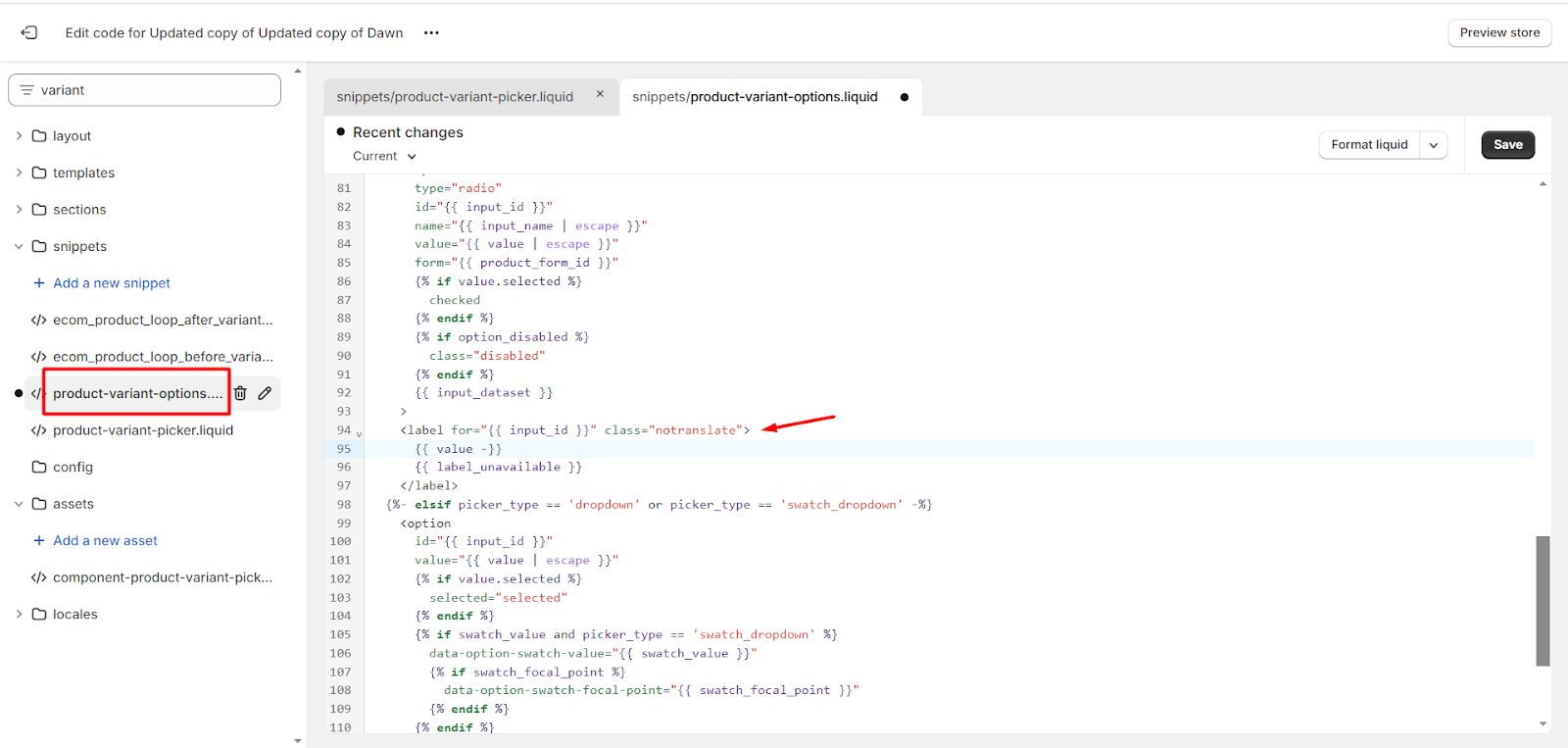
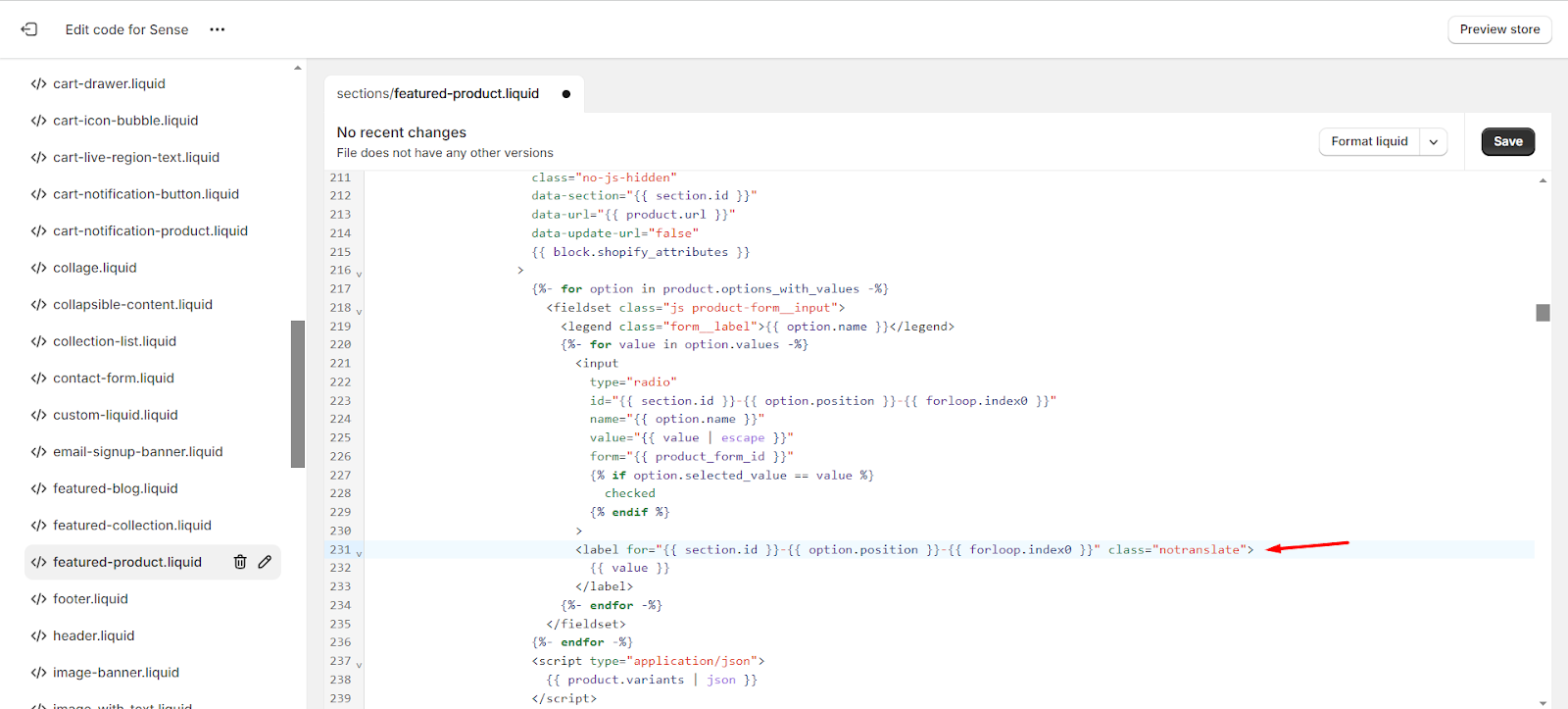
If you want options such as Size, Color, Material, or other variant values to remain unchanged:
- Open a product page.
- Inspect the variant selector or option labels.
- Locate the corresponding code in your theme.
- Add the
notranslateclass to the element that outputs the variant value.
Example:
<label for="{{ input_id }}" class="notranslate">
  {{ value }}
</label>
Or:
<select name="id">
  {% for variant in product.variants %}
    <option value="{{ variant.id }}" class="notranslate">
      {{ variant.title }}
    </option>
  {% endfor %}
</select>
Common files where variant content may be rendered include:
sections/main-product.liquidsections/product-form.liquidsnippets/product-form.liquidtemplates/product.liquidproduct-template.liquidproduct-variant-options.liquid
After locating the appropriate element, add the notranslate class.
Need Help?
If you're unsure where to add the notranslate class in your theme, feel free to contact us at [email protected] and we'll be happy to assist.