Use Glossary in Transtore
The Glossary lets you control how specific terms are translated when you generate manual translations with OpenAI GPT. You can provide a preferred translation for a term or keep it unchanged in selected target languages.
A Glossary rule does nothing on its own. After you add a rule, your storefront stays exactly the same until you translate the content again with Improve translation with AI > OpenAI GPT (Step 3).
Glossary rules do not apply to:
- Auto Translation
- Translations generated with DeepSeek
- Translations that already exist
Step 1: Open the Glossary
- Open the Transtore app in your Shopify admin.
- Go to Language.
- Click Glossary.
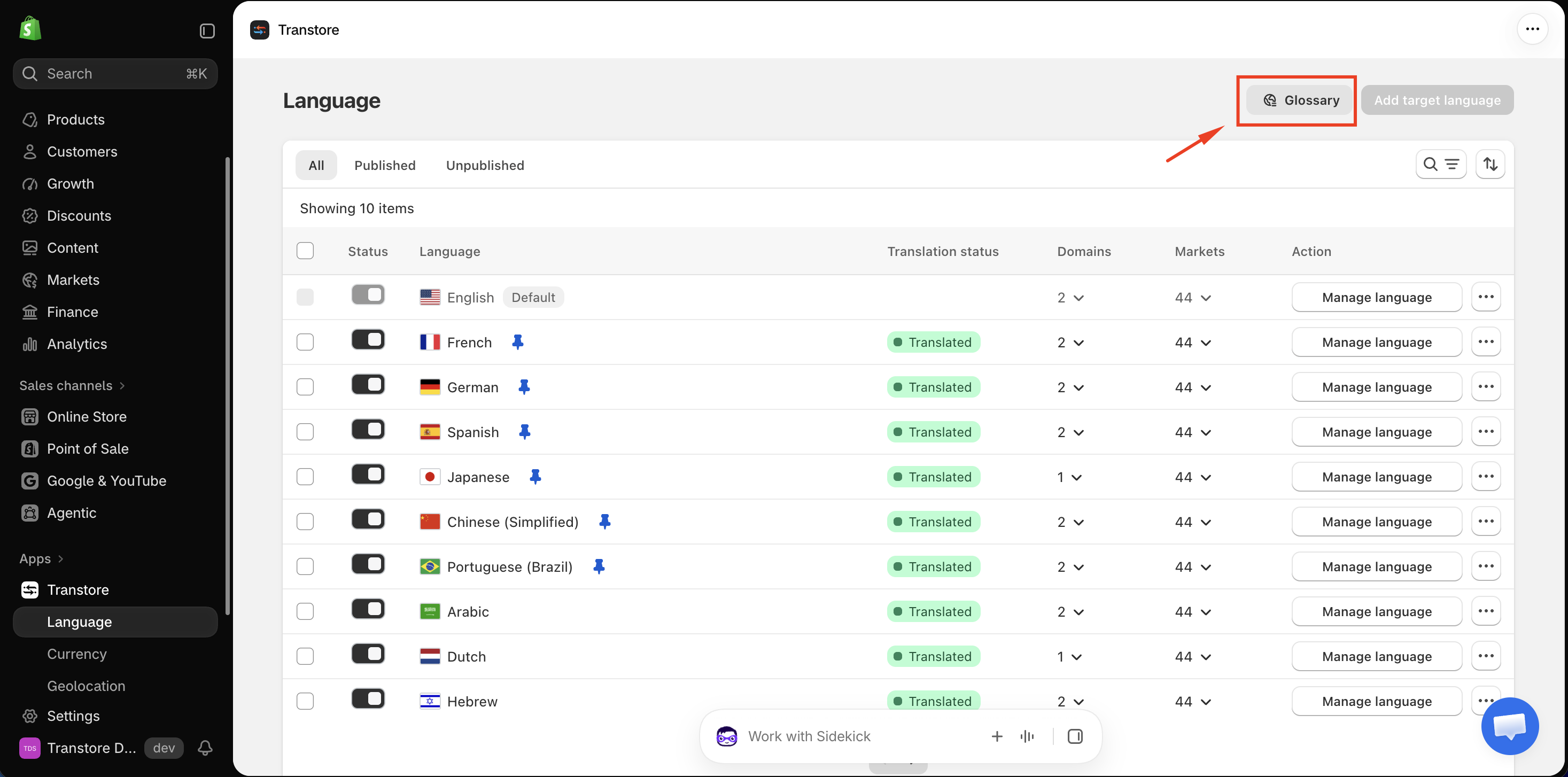
Step 2: Create a glossary rule
- Click Add rule.
- Select a rule type:
- Translate as - Use a specific translation for the term.
- Never translate - Keep the term unchanged.
- Enter the term from your default language in the Default content field. The term can contain up to 60 characters.
- Enable Case sensitive if the rule should apply only when the capitalization matches exactly.
- Under Apply for, select the target languages that should use the rule.
- If you selected Translate as, enter the translation to use for each target language.
- Click Add to save the rule.
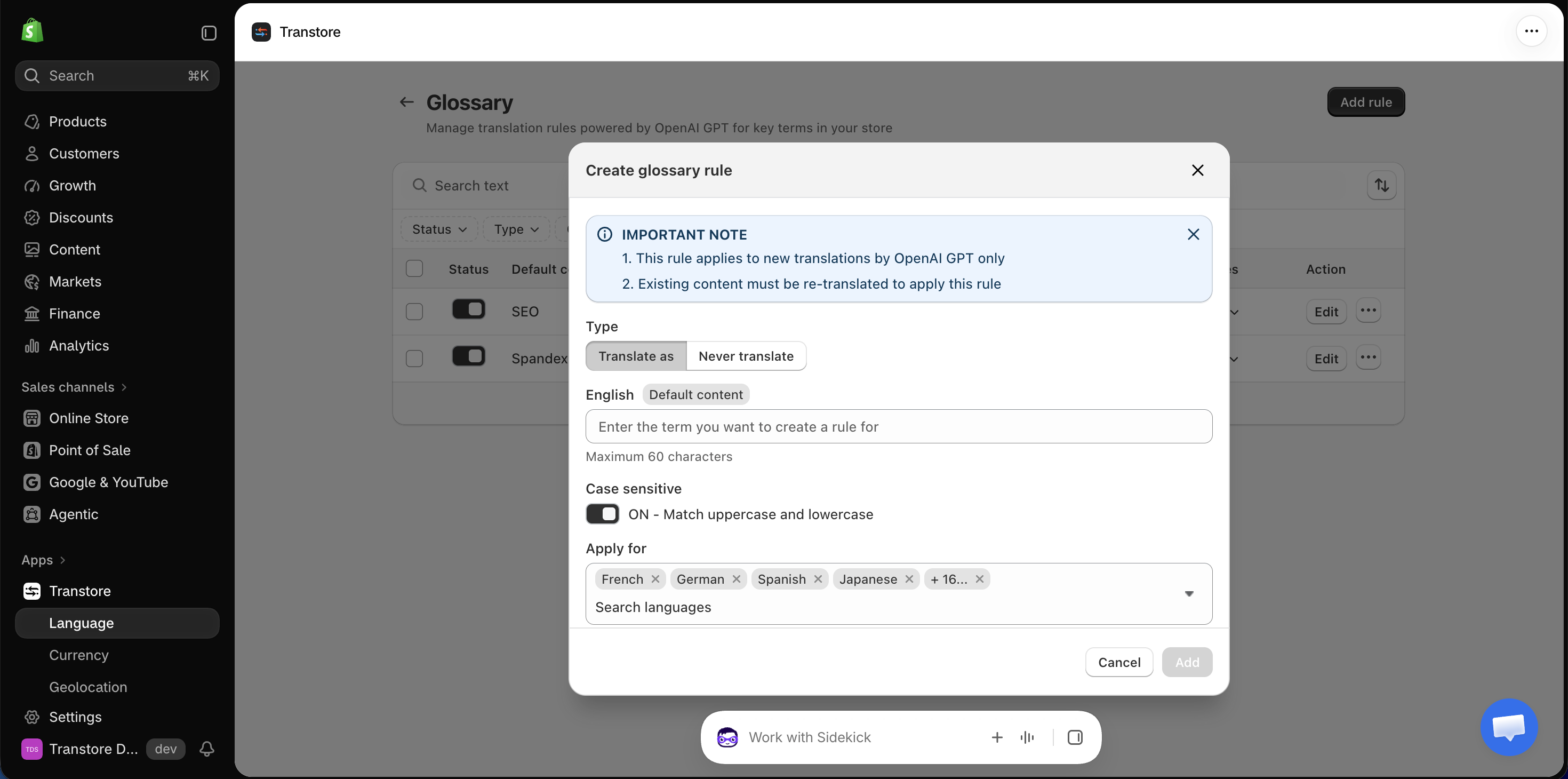
The rule is now saved, but nothing has changed on your storefront yet. Continue to Step 3 to apply it.
Step 3: Translate your content again with OpenAI GPT (required)
A rule only takes effect when a translation is generated with OpenAI GPT. Existing translations are not updated automatically, so generate them again for every piece of content where the term appears.
- Go to Language.
- Click Manage language next to the target language.
- Open the resource containing the translation you want to update. See How to Find and Edit Translations in the Transtore App for the full list of resources.
- Find the relevant content and click Improve translation with AI.
- Select OpenAI GPT and generate the translation again.
- Review and save the new translation.
The new manual translation will use any matching Glossary rules configured for that target language.
Glossary and Auto Translation exclusions
Glossary rules and the notranslate class apply to different translation methods:
- Glossary: Controls specific terms in manual translations generated with OpenAI GPT. Use Translate as to provide preferred wording or Never translate to keep a term unchanged in the selected target languages. Glossary rules do not apply to DeepSeek or Auto Translation. Existing translations must be generated again with OpenAI GPT for a new rule to apply.
- The
notranslateclass: Stops Auto Translation for a marked element and its contents across all target languages. It does not delete, disable, or override manual translations saved in Shopify, and it does not replace a Glossary rule.
For example, to keep a brand name unchanged when generating manual translations with OpenAI GPT, create a Never translate rule and generate the translations again. To stop Auto Translation for the storefront element displaying that brand name, add the notranslate class to that element. Any saved manual translation can still appear.
See Exclude specific content from Auto Translation for instructions on adding the class.
If you have any questions or need help creating a Glossary rule, please contact us at [email protected]. Our support team will be happy to assist you.